Basic 6 · Computing · Introduction to MS Windows Interface
The Navigation Pane of File Explorer
In this topic you will demonstrate the use of the navigation pane in File Explorer to move between drives, folders and locations.
By the end of these notes you should be able to:
- Identify the parts of the navigation pane
- Use the navigation pane to open drives and folders
- Pin folders to Quick access
What you already know
- Using File Explorer
Copy everything that has a blue line on its left into your notebook. The other parts are for reading.
- Strand
- Introduction To Computers
- Sub-strand
- Introduction to MS Windows Interface
- Indicator
- B6.1.2.1.8-10 – Demonstrate the use of the navigation pane of File Explorer
Introduction
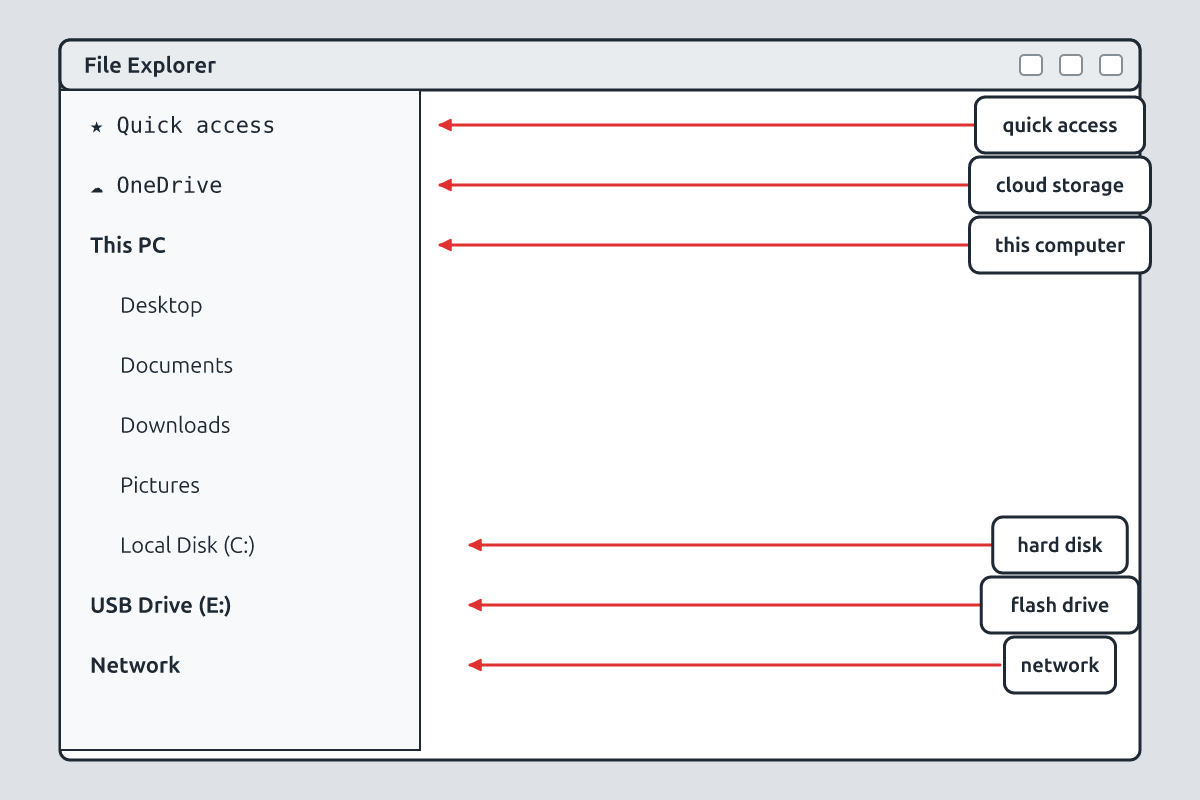
The navigation pane is the list on the left side of File Explorer. It works like a map, letting you jump quickly to any drive or folder.
1. Parts of the Navigation Pane
| Section | What it shows |
|---|---|
| Quick access (Home) | folders you use often and pinned folders |
| OneDrive | files stored online (cloud storage) |
| This PC | Desktop, Documents, Downloads, Music, Pictures, Videos and drives |
| drives | Local Disk (C:), USB drives (e.g. E:), DVD drive |
| Network | other computers and printers connected to the network |
2. Using the Navigation Pane
- Open File Explorer (Windows key + E).
- Click a location in the left pane, such as Documents; its contents appear on the right.
- Click the small arrow (>) beside a folder to expand it and see subfolders.
- Click the arrow again (v) to collapse it.
- Drag files from the right pane onto a folder in the left pane to move them there.
3. Pinning to Quick Access
To keep a folder you use often at the top of the navigation pane, right-click it and choose "Pin to Quick access". To remove it, right-click it in Quick access and choose "Unpin from Quick access". Unpinning does not delete the folder.
4. Working with Drives
When you insert a USB flash drive, it appears under This PC with a letter such as E: or F:. Click it in the navigation pane to see its files. Before removing it, click the "Safely Remove Hardware" icon on the taskbar or right-click the drive → Eject, to avoid damaging files.
Common mistake: Pulling out a flash drive while files are being copied can corrupt (damage) the files.
New words
- navigation pane
- The left panel of File Explorer used to move between locations.
- Quick access
- A list of frequently used and pinned folders.
- expand
- To open a folder in the pane to show its subfolders.
- collapse
- To close the list of subfolders.
- pin
- To fix a folder in Quick access.
- eject
- To safely disconnect a drive.
Summary
- The navigation pane shows Quick access, OneDrive, This PC, drives and Network.
- Expand and collapse folders with the arrows.
- Pin frequently used folders to Quick access.
- Eject flash drives safely before removing them.
Class activity: Navigation Practice
- Use the navigation pane to open Documents, Pictures and your flash drive.
- Pin your class folder to Quick access.
- Drag a file into a folder in the navigation pane, then eject the flash drive safely.
You need: Desktop computer, Mouse, Keyboard
Exercises
Answer in your exercise book first, then check your answers.
1. Where is the navigation pane?
- A. On the left of File Explorer
- B. On the taskbar
- C. In the Recycle Bin
- D. On the keyboard
Show answer
Answer: On the left of File ExplorerIt lists locations.2. To show subfolders in the navigation pane you…
- A. expand the folder
- B. empty it
- C. eject it
- D. rename it
Show answer
Answer: expand the folderClick the arrow.3. A USB flash drive appears under…
- A. This PC
- B. Recycle Bin
- C. Network only
- D. Start menu
Show answer
Answer: This PCWith a drive letter.4. You can pin folders to Quick access.
- A. True
- B. False
Show answer
Answer: TrueRight-click → Pin.5. Unpinning a folder from Quick access deletes it.
- A. True
- B. False
Show answer
Answer: FalseIt only removes the shortcut.6. To safely disconnect a flash drive, you ______ it.
Show answer
Answer: ejectBefore removing.7. Name four sections of the navigation pane.
Show answer
Answer: Quick access, OneDrive, This PC, Network (or drives).Any four.8. Why should you eject a flash drive before removing it?
Show answer
Answer: To make sure all files have finished copying and avoid corrupting the files.Data safety.
Homework
- Write the steps for pinning a folder to Quick access and ejecting a flash drive.