Basic 6 · Computing · Introduction to MS Windows Interface
The Desktop Background and the Recycle Bin
In this topic you will explore the use of the desktop and its background, and demonstrate how to use the Recycle Bin to delete, restore and empty files.
By the end of these notes you should be able to:
- Explain the use of the desktop and desktop icons
- Change the desktop background
- Delete, restore and permanently delete files with the Recycle Bin
What you already know
- Personalizing the desktop (Basic 5)
Copy everything that has a blue line on its left into your notebook. The other parts are for reading.
- Strand
- Introduction To Computers
- Sub-strand
- Introduction to MS Windows Interface
- Indicator
- B6.1.2.1.1-3 – Explore the use of the desktop, Background and demonstrate the use of the Recycle, Bin or Trash Can
Introduction
When you delete a file by mistake, is it gone for ever? Not always. Windows keeps deleted files in the Recycle Bin so you can get them back.
1. The Desktop
The desktop is the main working area of Windows. It holds icons for programs, files and folders, as well as the taskbar. You can create shortcuts on the desktop to open programs quickly. A tidy desktop helps you find things easily.
Review: right-click the desktop → Personalize → Background to change the picture, colour or slideshow behind your icons.
2. The Recycle Bin
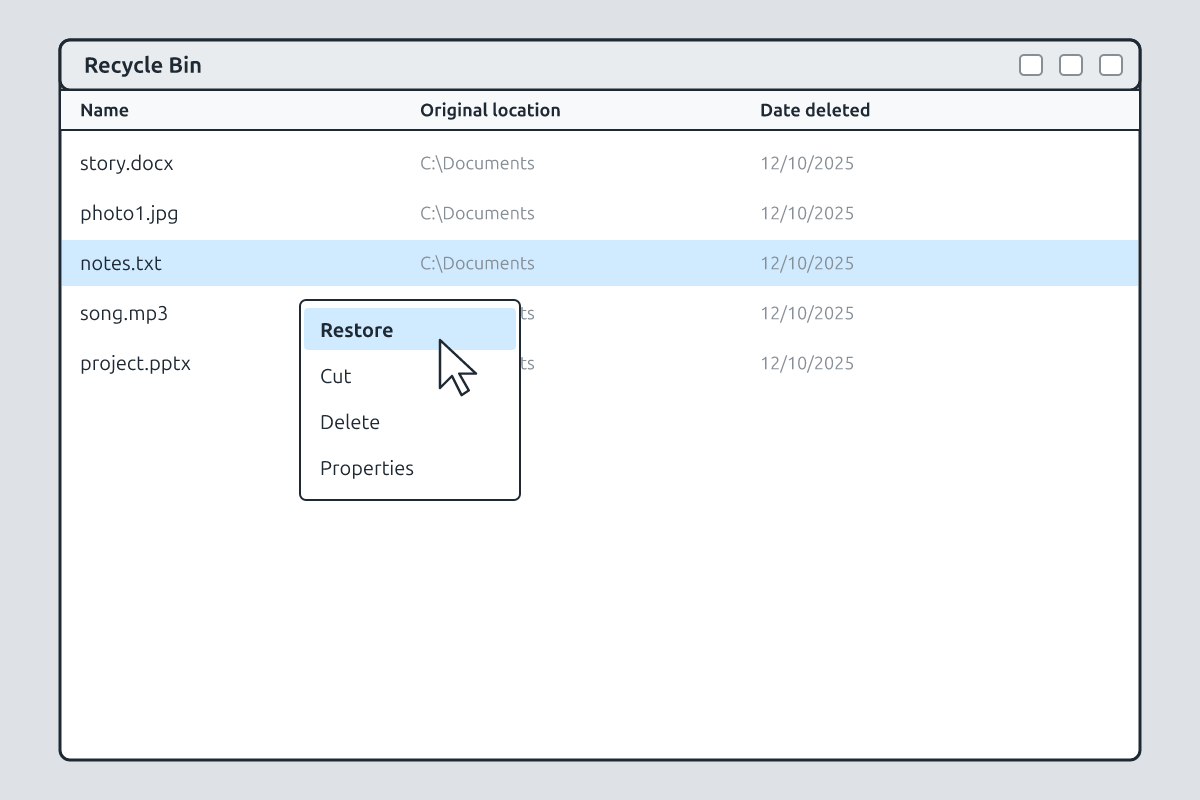
Recycle Bin: A special folder that temporarily stores files and folders deleted from the computer's hard drive.
| Task | Steps |
|---|---|
| delete a file | select it and press Delete, or right-click → Delete; it moves to the Recycle Bin |
| open the Recycle Bin | double-click its icon on the desktop |
| restore a file | right-click the file in the Recycle Bin → Restore; it returns to its original folder |
| delete one file permanently | right-click it in the Recycle Bin → Delete |
| empty the Recycle Bin | right-click the Recycle Bin icon → Empty Recycle Bin |
| delete without using the bin | select the file and press Shift + Delete |
3. Why the Recycle Bin Is Useful
- It protects you from deleting files by mistake.
- It lets you restore files to their original location.
- Emptying it frees storage space on the hard drive.
4. Important Notes
Files deleted from a USB flash drive or memory card usually do not go to the Recycle Bin; they are deleted permanently. The Recycle Bin icon looks empty when there is nothing inside and full when it contains deleted items. On Apple computers, the same feature is called the Trash.
Common mistake: Emptying the Recycle Bin is permanent. Check carefully before you empty it.
New words
- desktop
- The main screen area of Windows.
- Recycle Bin
- Temporary storage for deleted items.
- restore
- To return a deleted item to its original place.
- empty
- To permanently delete everything in the Recycle Bin.
- permanent
- Lasting for ever; cannot be undone.
- Trash
- The name for the Recycle Bin on Apple computers.
Summary
- The desktop holds icons, shortcuts and the taskbar.
- Deleted files go to the Recycle Bin and can be restored.
- Emptying the Recycle Bin deletes files permanently.
- Shift + Delete skips the Recycle Bin.
Class activity: Delete and Restore
- Create a practice file named "Test".
- Delete it, open the Recycle Bin and restore it.
- Delete it again and empty the Recycle Bin.
You need: Desktop computer, Mouse, Keyboard
Exercises
Answer in your exercise book first, then check your answers.
1. Where do deleted files go first?
- A. Recycle Bin
- B. Desktop
- C. Printer
- D. Taskbar
Show answer
Answer: Recycle BinThey can be restored.2. Which command returns a file to its original folder?
- A. Restore
- B. Empty
- C. Delete
- D. Rename
Show answer
Answer: RestoreFrom the Recycle Bin.3. Which shortcut deletes without using the Recycle Bin?
- A. Shift + Delete
- B. Ctrl + C
- C. Alt + Tab
- D. Ctrl + Z
Show answer
Answer: Shift + DeletePermanent deletion.4. Emptying the Recycle Bin frees space.
- A. True
- B. False
Show answer
Answer: TrueFiles are removed.5. Files deleted from a flash drive always go to the Recycle Bin.
- A. True
- B. False
Show answer
Answer: FalseThey are usually deleted permanently.6. On Apple computers, the Recycle Bin is called the ______.
Show answer
Answer: TrashSame function.7. Write the steps to empty the Recycle Bin.
Show answer
Answer: Right-click the Recycle Bin icon and choose Empty Recycle Bin, then confirm.Permanent.8. Why should you check the Recycle Bin before emptying it?
Show answer
Answer: Emptying is permanent, so you might lose an important file deleted by mistake.Caution.
Homework
- Write the steps for deleting, restoring and permanently deleting a file.