Basic 6 · Computing · Generation of Computers
Advanced Mousing and Keyboarding Skills
In this topic you will perform advanced mouse actions and use keyboard shortcuts to work faster and more accurately.
By the end of these notes you should be able to:
- Use mouse actions such as selecting, dragging and multiple selection
- Use common keyboard shortcuts
- Type with correct posture and finger placement
What you already know
- Keyboard rows and the numeric keypad (Basic 5)
Copy everything that has a blue line on its left into your notebook. The other parts are for reading.
- Strand
- Introduction To Computers
- Sub-strand
- Generation of Computers
- Indicator
- B6.1.1.1.3 – Perform some basic mousing and keyboarding skills
Introduction
Expert computer users rarely search through menus. They use shortcuts on the keyboard and quick mouse actions to work much faster.
1. Advanced Mouse Actions
| Action | How | Use |
|---|---|---|
| select text | click and drag over words | choose text to format or copy |
| double-click a word | double-click | select one word |
| triple-click | click three times quickly | select a whole paragraph |
| multiple selection | hold Ctrl and click items | select several files |
| range selection | click the first item, hold Shift and click the last | select a group of items |
| drag and drop | hold the left button and move | move files or text |
| right-click | press the right button | show a context menu |
2. Keyboard Shortcuts
| Shortcut | Action |
|---|---|
| Ctrl + C | copy |
| Ctrl + X | cut |
| Ctrl + V | paste |
| Ctrl + Z | undo |
| Ctrl + Y | redo |
| Ctrl + A | select all |
| Ctrl + S | save |
| Ctrl + P | |
| Alt + Tab | switch between open windows |
| Windows key + D | show the desktop |
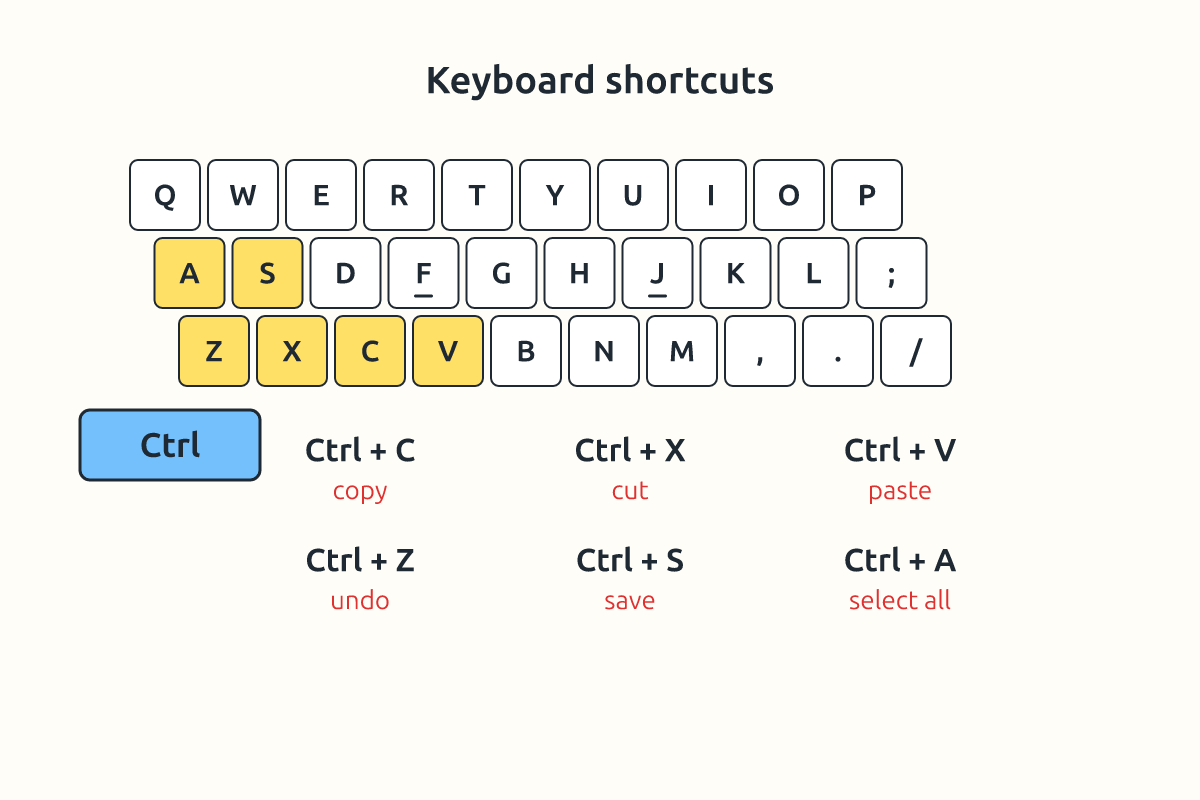
3. Typing Practice
Keep your fingers on the home row (ASDF JKL;) and use the correct finger for each key. Look at the screen, not the keyboard. Practise a sentence such as "The quick brown fox jumps over the lazy dog", which contains every letter of the alphabet.
Accuracy is more important than speed at first. As you practise daily, your speed will improve. Many typing tutor programs measure words per minute (wpm).
Tip: Press Ctrl + Z immediately if you make a mistake such as deleting text by accident.
Remember to keep good posture while practising: sit upright, feet flat, wrists straight and the screen at eye level. Short daily practice of 10–15 minutes builds skill better than one long session.
New words
- shortcut
- A key combination that performs a command quickly.
- select
- To highlight an item before acting on it.
- context menu
- The menu that appears when you right-click.
- undo
- To reverse the last action.
- wpm
- Words per minute, a measure of typing speed.
- accuracy
- Typing without mistakes.
Summary
- Use Ctrl and Shift to select several items.
- Keyboard shortcuts such as Ctrl + C and Ctrl + V save time.
- Ctrl + Z undoes mistakes.
- Practise touch typing for accuracy first, then speed.
Class activity: Shortcut Challenge
- Open a word processor and type a short paragraph.
- Use only keyboard shortcuts to select all, copy, paste, undo and save.
- Time each other and try to improve.
You need: Desktop computer, Keyboard, Mouse
Exercises
Answer in your exercise book first, then check your answers.
1. Which shortcut copies?
- A. Ctrl + C
- B. Ctrl + V
- C. Ctrl + Z
- D. Ctrl + P
Show answer
Answer: Ctrl + CC for copy.2. Which shortcut undoes the last action?
- A. Ctrl + Z
- B. Ctrl + Y
- C. Ctrl + A
- D. Ctrl + S
Show answer
Answer: Ctrl + ZUndo.3. To select several files that are not next to each other, hold…
- A. Ctrl
- B. Shift
- C. Alt
- D. Tab
Show answer
Answer: CtrlCtrl + click.4. Ctrl + S saves a document.
- A. True
- B. False
Show answer
Answer: TrueS for save.5. Triple-clicking selects one letter.
- A. True
- B. False
Show answer
Answer: FalseIt selects a paragraph.6. Alt + Tab switches between open ______.
Show answer
Answer: windowsPrograms.7. Give the shortcuts for cut, paste and select all.
Show answer
Answer: Ctrl + X, Ctrl + V, Ctrl + ACommon shortcuts.8. Why do expert users prefer shortcuts?
Show answer
Answer: They are faster than using menus and let you keep your hands on the keyboard.Efficiency.
Homework
- Write ten keyboard shortcuts and their uses on a card.