Basic 5 · Computing · Introduction to MS Windows Interface
Understanding the File Explorer Window
In this topic you will identify the parts of the File Explorer window and use it to create, open and organise folders.
By the end of these notes you should be able to:
- Open File Explorer
- Identify the parts of the File Explorer window
- Create, rename and delete folders
What you already know
- Personalizing the desktop
Copy everything that has a blue line on its left into your notebook. The other parts are for reading.
- Strand
- Introduction To Computing
- Sub-strand
- Introduction to MS Windows Interface
- Indicator
- B5.1.2.1.5-6 – Demonstrate understanding of the File Explorer window
Introduction
A computer may hold thousands of files: documents, pictures, songs and videos. File Explorer is the program that helps you find and organise them, like a cupboard with many labelled drawers.
1. Opening File Explorer
- Click the folder icon on the taskbar, or
- Press Windows key + E, or
- Click Start and choose File Explorer.
2. Parts of the Window
| Part | Use |
|---|---|
| title bar | shows the name of the open folder |
| ribbon/toolbar | buttons such as New folder, Cut, Copy, Paste, Delete |
| address bar | shows the path of the current folder |
| search box | finds files by name |
| navigation pane | the left side list of drives and folders |
| content area | shows the files and folders inside |
| status bar | shows how many items are in the folder |
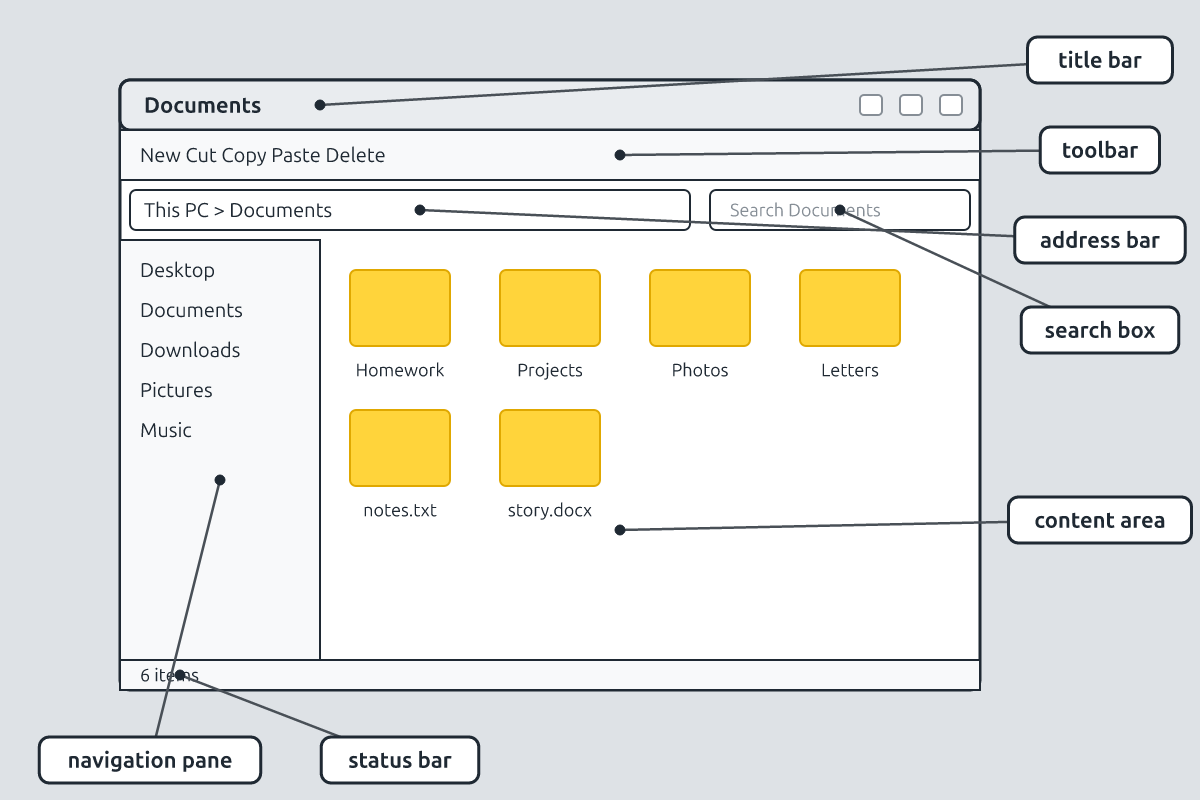
3. Files, Folders and Drives
A file is a single item such as a letter, a picture or a song. A folder is a container that holds files and other folders. A drive is where everything is stored, such as Local Disk (C:) or a USB flash drive. The address bar shows the path, for example This PC > Documents > School > Science.
4. Working with Folders
| Task | Steps |
|---|---|
| create a folder | click New folder (or right-click → New → Folder), type a name, press Enter |
| rename a folder | right-click it → Rename, type the new name, press Enter |
| open a folder | double-click it |
| delete a folder | select it and press Delete; it goes to the Recycle Bin |
| restore a deleted item | open Recycle Bin, right-click the item → Restore |
Use clear names such as "Science Notes" or "Class Photos 2026" so you can find things easily. Keep related files together in one folder.
Common mistake: Deleting a folder also deletes all the files inside it. Check before you delete.
New words
- File Explorer
- The program for managing files and folders.
- file
- A single saved item.
- folder
- A container for files.
- drive
- A storage location such as C: or a USB drive.
- path
- The route to a file or folder.
- Recycle Bin
- Where deleted items go before being removed for ever.
Summary
- Open File Explorer with Windows key + E.
- The navigation pane, address bar and content area help you find files.
- Folders hold files; drives hold folders.
- Deleted items go to the Recycle Bin and can be restored.
Class activity: My School Folder
- Open Documents and create a folder named with your class.
- Inside it, create folders for three subjects.
- Rename one folder, delete it, then restore it from the Recycle Bin.
You need: Desktop computer, Mouse, Keyboard
Exercises
Answer in your exercise book first, then check your answers.
1. Which shortcut opens File Explorer?
- A. Windows key + E
- B. Windows key + L
- C. Ctrl + P
- D. Alt + Tab
Show answer
Answer: Windows key + EE for Explorer.2. Which part shows the path of the current folder?
- A. Address bar
- B. Status bar
- C. Title bar
- D. Search box
Show answer
Answer: Address bare.g. This PC > Documents.3. Where do deleted files go first?
- A. Recycle Bin
- B. Desktop
- C. Documents
- D. Printer
Show answer
Answer: Recycle BinThey can be restored.4. A folder can contain other folders.
- A. True
- B. False
Show answer
Answer: TrueThey are called subfolders.5. The navigation pane is at the bottom of the window.
- A. True
- B. False
Show answer
Answer: FalseIt is on the left.6. A container that holds files is called a ______.
Show answer
Answer: folderLike a drawer.7. Write the steps to create a new folder.
Show answer
Answer: Click New folder (or right-click → New → Folder), type a name, press Enter.Name it clearly.8. Explain why folders should be given clear names.
Show answer
Answer: Clear names make it easy to find files later and to know what each folder holds.Good organisation.
Homework
- Draw a "folder tree" for your school subjects with at least two levels.