Basic 5 · Computing · Introduction to MS Windows Interface
Personalizing the Desktop: Colours, Themes and Lock Screen
In this topic you will describe and use other ways of personalizing the desktop, including colours, themes, the lock screen and icon arrangement.
By the end of these notes you should be able to:
- Change the accent colour and the light or dark mode
- Apply a theme
- Arrange desktop icons and change the lock screen
What you already know
- Personalizing the desktop background
Copy everything that has a blue line on its left into your notebook. The other parts are for reading.
- Strand
- Introduction To Computing
- Sub-strand
- Introduction to MS Windows Interface
- Indicator
- B5.1.2.1.3 – 4 Describe how to Personalize the Desktop
Introduction
Personalizing a computer is more than changing the wallpaper. You can change colours, themes and the lock screen so that the computer is comfortable and easy to use.
1. Colours
In Personalization, click Colours. You can choose Light or Dark mode. Dark mode uses black backgrounds in windows and is easier on the eyes at night. You can also choose an accent colour, which appears on the Start menu, taskbar and window borders.
2. Themes
Theme: A set of background pictures, colours, sounds and a mouse pointer that are applied together.
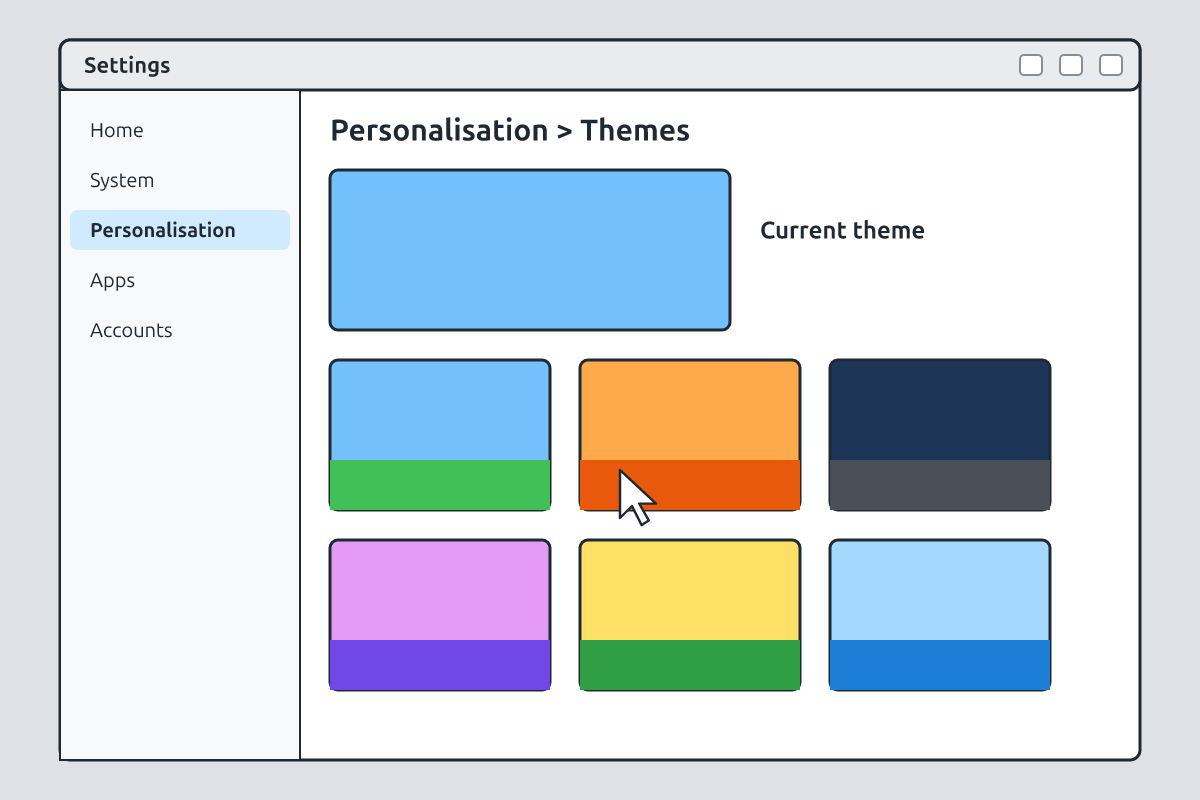
In Personalization, click Themes and select one from the list. The background, colour and sounds all change at once. Themes save time because you do not have to change each setting separately.
3. Lock Screen
The lock screen appears when the computer starts or is locked. It shows the time, date and a picture. In Personalization, click Lock screen to choose a picture or slideshow. Press Windows key + L to lock the computer when you leave it, so no one can use it without your password.
4. Arranging Icons
| Action | How |
|---|---|
| sort icons | right-click desktop → Sort by → Name, Size, Item type or Date modified |
| change icon size | right-click desktop → View → Large, Medium or Small icons |
| auto arrange | right-click desktop → View → Auto arrange icons |
| show or hide icons | right-click desktop → View → Show desktop icons |
A tidy desktop with a few well-arranged icons makes it easy to find programs. Keep only the icons you use often.
| Option | What you can change |
|---|---|
| Background | wallpaper picture, colour or slideshow |
| Colours | light/dark mode and accent colour |
| Themes | a full set of picture, colours and sounds |
| Lock screen | picture shown when locked |
| Taskbar | position and icons on the taskbar |
Tip: Windows key + L locks your computer quickly.
New words
- theme
- A set of matching desktop settings.
- accent colour
- The colour used on the taskbar and menus.
- dark mode
- A setting with dark backgrounds in windows.
- lock screen
- The screen shown when the computer is locked.
- icon
- A small picture that represents a file or program.
- sort
- To arrange in order.
Summary
- Colours change light or dark mode and the accent colour.
- Themes change several settings at once.
- The lock screen protects the computer and can show a picture.
- Icons can be sorted, resized and auto-arranged.
Class activity: Personalize and Restore
- Change the theme and accent colour.
- Sort the desktop icons by name and make them large.
- Restore the original settings and explain each step to your partner.
You need: Desktop computer, Mouse, Keyboard
Exercises
Answer in your exercise book first, then check your answers.
1. Which shortcut locks the computer?
- A. Windows key + L
- B. Ctrl + C
- C. Alt + F4
- D. Shift + Tab
Show answer
Answer: Windows key + LL for lock.2. A set of matching background, colours and sounds is a…
- A. theme
- B. folder
- C. program
- D. file
Show answer
Answer: themeApplied together.3. Where do you change icon size?
- A. Right-click desktop → View
- B. Start → Power
- C. Taskbar → Clock
- D. File Explorer → Copy
Show answer
Answer: Right-click desktop → ViewChoose Large, Medium or Small.4. Dark mode uses black backgrounds in windows.
- A. True
- B. False
Show answer
Answer: TrueIt is easier on the eyes at night.5. The lock screen and the desktop background are always the same.
- A. True
- B. False
Show answer
Answer: FalseThey can be set separately.6. The colour shown on the taskbar and Start menu is the ______ colour.
Show answer
Answer: accentChosen in Colours.7. Name four options in the Personalization menu.
Show answer
Answer: Background, Colours, Themes, Lock screen (or Taskbar).Any four.8. Why should you lock the computer when you leave it?
Show answer
Answer: So that no one can use it, see your work or change files without your password.Security.
Homework
- Write the steps for changing the theme and for sorting desktop icons by name.