Basic 5 · Computing · Introduction to MS Windows Interface
Personalizing the Desktop Background
In this topic you will recognise the desktop background and change and edit its image.
By the end of these notes you should be able to:
- Identify the desktop and its background
- Change the desktop background to a picture or colour
- Choose how the background picture fits the screen
What you already know
- The Windows desktop (Basic 4)
Copy everything that has a blue line on its left into your notebook. The other parts are for reading.
- Strand
- Introduction To Computing
- Sub-strand
- Introduction to MS Windows Interface
- Indicator
- B5.1.2.1.1 – 2 Recognize and Personalize the Desktop Background and edit its images
Introduction
When a computer starts, the first screen you see is the desktop. The picture behind the icons is the desktop background, also called the wallpaper. You can change it to a picture you like.
1. Parts of the Desktop
| Part | Description |
|---|---|
| background (wallpaper) | the picture or colour behind everything |
| icons | small pictures that open programs or files |
| taskbar | the bar at the bottom with the Start button |
| Start button | opens the Start menu |
| notification area | shows time, volume and network |
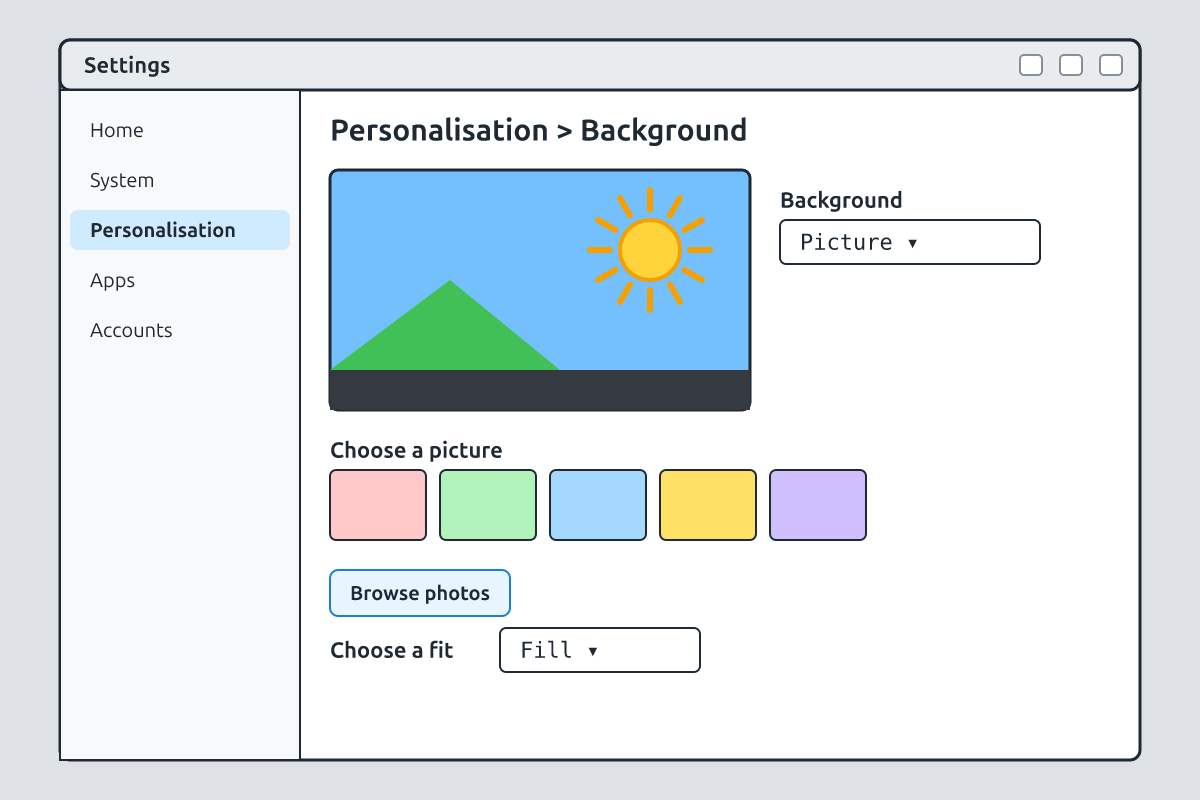
2. Changing the Background
- Right-click an empty area of the desktop.
- Click Personalize.
- Click Background.
- Under "Personalize your background", choose Picture, Solid colour or Slideshow.
- Click a picture from the list, or click Browse to choose your own photo.
- Close the window. The new background appears.
3. Editing How the Picture Fits
After choosing a picture, you can decide how it fits the screen. Some pictures are smaller or a different shape from the screen, so Windows gives several "fit" options.
| Option | What it does |
|---|---|
| Fill | fills the screen; may cut off edges |
| Fit | shows the whole picture; may leave bars at the sides |
| Stretch | stretches the picture to fill the screen; may look pulled |
| Tile | repeats a small picture many times |
| Centre | puts the picture in the middle at its real size |
You can also choose a solid colour instead of a picture, or a slideshow which changes the picture every few minutes. In a school lab, ask the teacher before changing settings, because other pupils share the computers.
Remember: Right-click the desktop → Personalize → Background.
New words
- desktop
- The main screen after the computer starts.
- background
- The picture or colour behind the desktop icons.
- wallpaper
- Another name for the desktop background.
- personalize
- To change settings to suit yourself.
- browse
- To look through folders to find a file.
- slideshow
- Pictures that change automatically.
Summary
- The desktop background is the picture behind the icons.
- Right-click the desktop and choose Personalize to change it.
- You can choose a picture, solid colour or slideshow.
- Fit options control how the picture fills the screen.
Class activity: My Background
- Change the desktop background to a picture of your choice.
- Try the Fill, Fit and Tile options.
- Change it back to the original when you finish.
You need: Desktop computer, Mouse, Keyboard
Exercises
Answer in your exercise book first, then check your answers.
1. Another name for the desktop background is…
- A. wallpaper
- B. taskbar
- C. icon
- D. window
Show answer
Answer: wallpaperIt covers the desktop.2. What is the first step to change the background?
- A. Right-click the desktop
- B. Double-click an icon
- C. Press Enter
- D. Open Paint
Show answer
Answer: Right-click the desktopThen choose Personalize.3. Which fit option repeats a small picture?
- A. Tile
- B. Fill
- C. Stretch
- D. Centre
Show answer
Answer: TileLike floor tiles.4. You can use your own photo as the background.
- A. True
- B. False
Show answer
Answer: TrueUse Browse.5. The taskbar is the picture behind the icons.
- A. True
- B. False
Show answer
Answer: FalseThat is the background.6. The bar with the Start button is the ______.
Show answer
Answer: taskbarIt is at the bottom.7. Name three types of background you can choose.
Show answer
Answer: Picture, solid colour and slideshow.They are in the Background list.8. Explain the difference between Fill and Stretch.
Show answer
Answer: Fill keeps the picture's shape and may cut edges; Stretch pulls the picture to fit and may distort it.Both fill the screen.
Homework
- Write the steps for changing a desktop background in your own words.