Basic 5 · Computing · Generation of Computers
Mousing and Keyboarding Skills
In this topic you will practise basic mouse actions and correct keyboarding skills.
By the end of these notes you should be able to:
- Perform the main mouse actions correctly
- Sit and place the hands correctly when typing
- Use common keys such as Enter, Shift, Backspace and Space bar
What you already know
- Parts of the computer (Basic 4)
Copy everything that has a blue line on its left into your notebook. The other parts are for reading.
- Strand
- Introduction To Computing
- Sub-strand
- Generation of Computers
- Indicator
- B5.1.1.1.4-5 – Perform some basic mousing and keyboarding skills
Introduction
The mouse and the keyboard are the two input devices you use most. Using them well makes you fast and accurate, and good posture keeps your body healthy.
1. Holding the Mouse
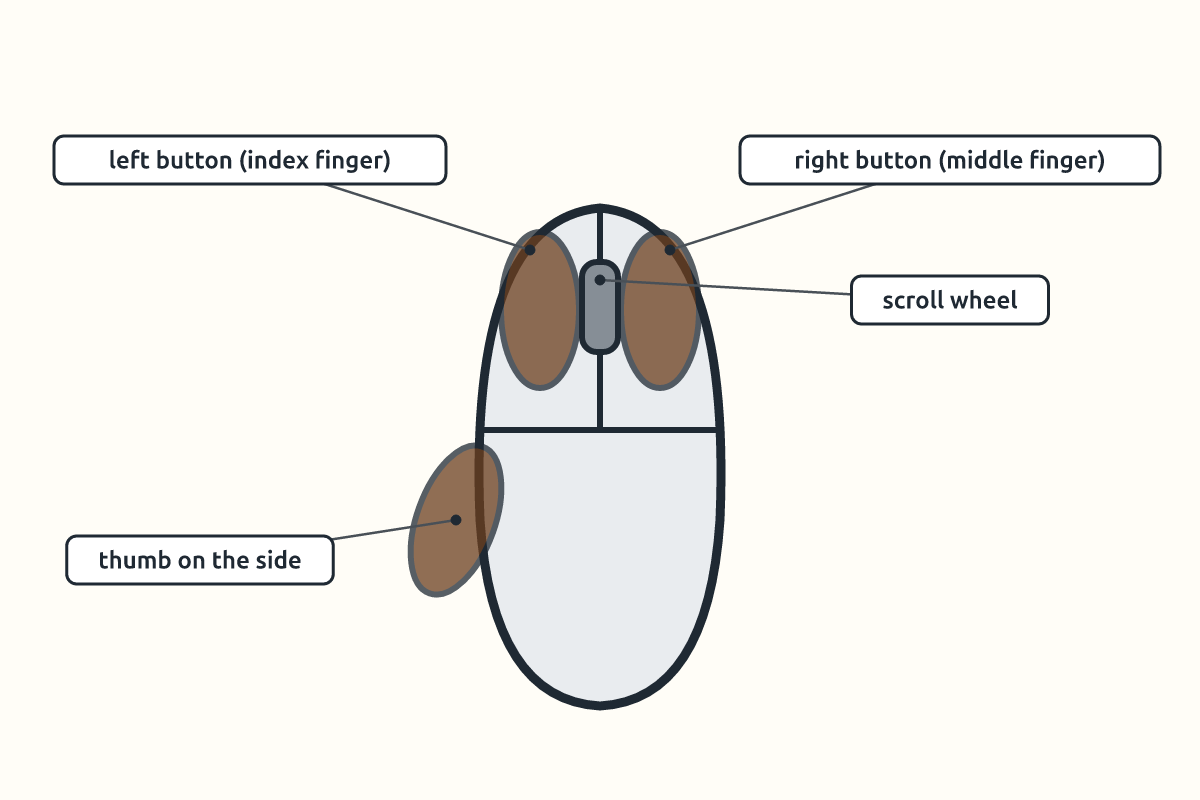
Rest your palm lightly on the mouse. Place your index finger on the left button and your middle finger on the right button. Keep your thumb and other fingers at the sides. Move the mouse by moving your wrist and arm, not by lifting it.
| Action | How to do it | Use |
|---|---|---|
| point | move the pointer over an item | to select where to act |
| click | press and release the left button once | select an icon or button |
| double-click | click the left button twice quickly | open a file or program |
| right-click | press the right button once | show a shortcut menu |
| drag and drop | hold the left button, move, then release | move files or icons |
| scroll | roll the wheel | move up and down a page |
2. Correct Posture
- Sit upright with your back against the chair.
- Keep your feet flat on the floor.
- Keep the monitor at eye level and about an arm's length away.
- Keep your wrists straight and slightly raised above the keyboard.
- Take a short break every 20 minutes to rest your eyes.
3. Important Keys
| Key | What it does |
|---|---|
| Enter | starts a new line or confirms a command |
| Space bar | puts a space between words |
| Backspace | deletes the character to the left of the cursor |
| Delete | deletes the character to the right of the cursor |
| Shift | types a capital letter or the top symbol on a key |
| Caps Lock | types all capital letters until pressed again |
| Tab | moves the cursor a set distance |
Practise typing short sentences such as "Ghana is my country." Press Shift with the opposite hand to type the capital G. Use the Space bar with your thumb.
Safety: Do not eat or drink near the computer. Spilled liquids can damage the keyboard and cause electric shock.
New words
- pointer
- The arrow on the screen that moves with the mouse.
- click
- Pressing and releasing a mouse button.
- double-click
- Clicking twice quickly.
- drag
- Moving an item while holding the mouse button.
- posture
- The way you sit.
- cursor
- The blinking line that shows where text will appear.
Summary
- Hold the mouse lightly with fingers on the buttons.
- Use click, double-click, right-click, drag and scroll.
- Sit upright with feet flat and wrists straight.
- Enter, Shift, Backspace and Space bar are common keys.
Class activity: Mouse and Key Drill
- One partner opens and closes three icons using double-click.
- The other types "My name is …" with correct capital letters.
- Swap roles and check each other's posture.
You need: Desktop computer, Keyboard, Mouse
Exercises
Answer in your exercise book first, then check your answers.
1. Which action opens a file?
- A. Double-click
- B. Right-click
- C. Scroll
- D. Point
Show answer
Answer: Double-clickIt opens files and programs.2. Which key deletes the character to the left of the cursor?
- A. Backspace
- B. Delete
- C. Enter
- D. Tab
Show answer
Answer: BackspaceDelete removes to the right.3. How far should the monitor be from your eyes?
- A. About an arm's length
- B. 5 cm
- C. 3 metres
- D. Touching your face
Show answer
Answer: About an arm's lengthThis protects the eyes.4. Right-click shows a shortcut menu.
- A. True
- B. False
Show answer
Answer: TrueIt gives options.5. You should lift the mouse to move the pointer.
- A. True
- B. False
Show answer
Answer: FalseSlide it on the mat.6. The key used to type a capital letter is ______.
Show answer
Answer: ShiftHold it with the letter.7. State three rules of good posture.
Show answer
Answer: Sit upright, feet flat, monitor at eye level (or wrists straight, take breaks).Any three.8. Explain the difference between Backspace and Delete.
Show answer
Answer: Backspace removes the character before (left of) the cursor; Delete removes the character after (right of) it.Both delete but in different directions.
Homework
- Draw a keyboard and colour the Enter, Shift, Backspace, Space bar and Tab keys.