Basic 4 · Computing · Introduction to MS Windows Interface
The Desktop and Its Features
In this topic you will learn what the Windows desktop is and the features on it, such as the wallpaper, icons, mouse pointer, taskbar and Start button.
By the end of these notes you should be able to:
- Explain what the desktop is
- Identify the features of the desktop
- State the use of common desktop icons
- Recognise the different shapes of the mouse pointer
What you already know
- Using the mouse: click and double-click
Copy everything that has a blue line on its left into your notebook. The other parts are for reading.
- Strand
- Introduction to Computing
- Sub-strand
- Introduction to MS Windows Interface
- Indicator
- B4.1.2.1.1 – Describe the desktop background and explain its features
Introduction
When you switch on a computer that uses Microsoft Windows, the first screen you see after it starts is called the desktop. Just like your desk in class holds your books and pencils, the computer desktop holds the things you need to work.
1. What is the Desktop?
Desktop: The main screen that appears after a Windows computer has finished starting up.
Microsoft Windows is an operating system. An operating system is the main program that controls the computer and lets us use it.
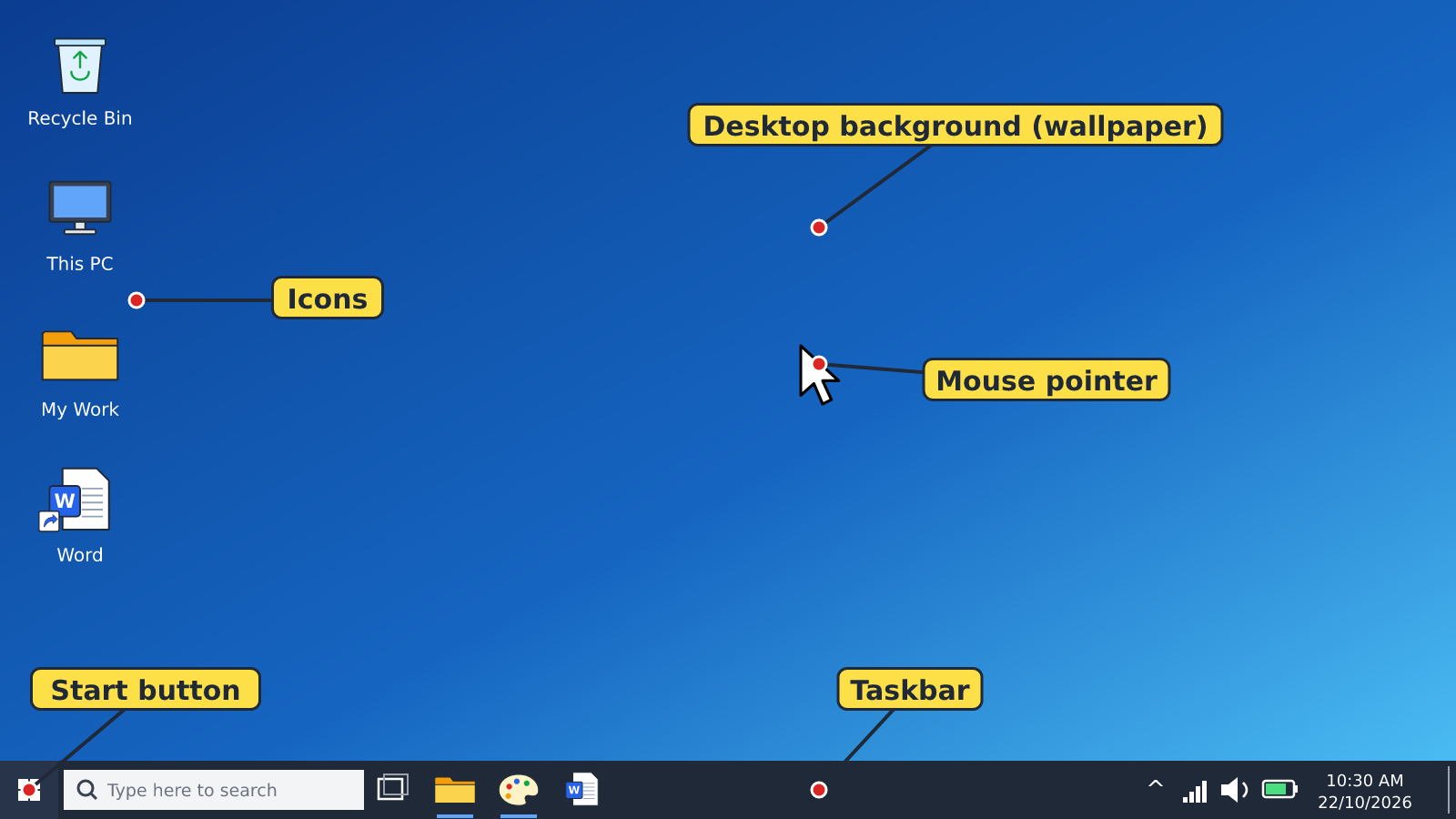
2. Features of the Desktop
| Feature | Description |
|---|---|
| Desktop background (wallpaper) | The picture or colour that covers the desktop screen. |
| Icons | Small pictures that stand for programs, files and folders. Double-click an icon to open it. |
| Mouse pointer | The small arrow that moves on the screen when you move the mouse. |
| Taskbar | The long bar at the bottom of the screen. |
| Start button | The Windows logo button on the taskbar. Click it to open the Start menu. |
3. Common Desktop Icons
| Icon | What it does |
|---|---|
| Recycle Bin | Keeps files and folders that have been deleted. You can restore them from here. |
| This PC (My Computer) | Shows the drives and storage devices on the computer. |
| Folder | Holds files and other folders. |
| Program shortcut (e.g. Microsoft Word) | Opens the program quickly. |
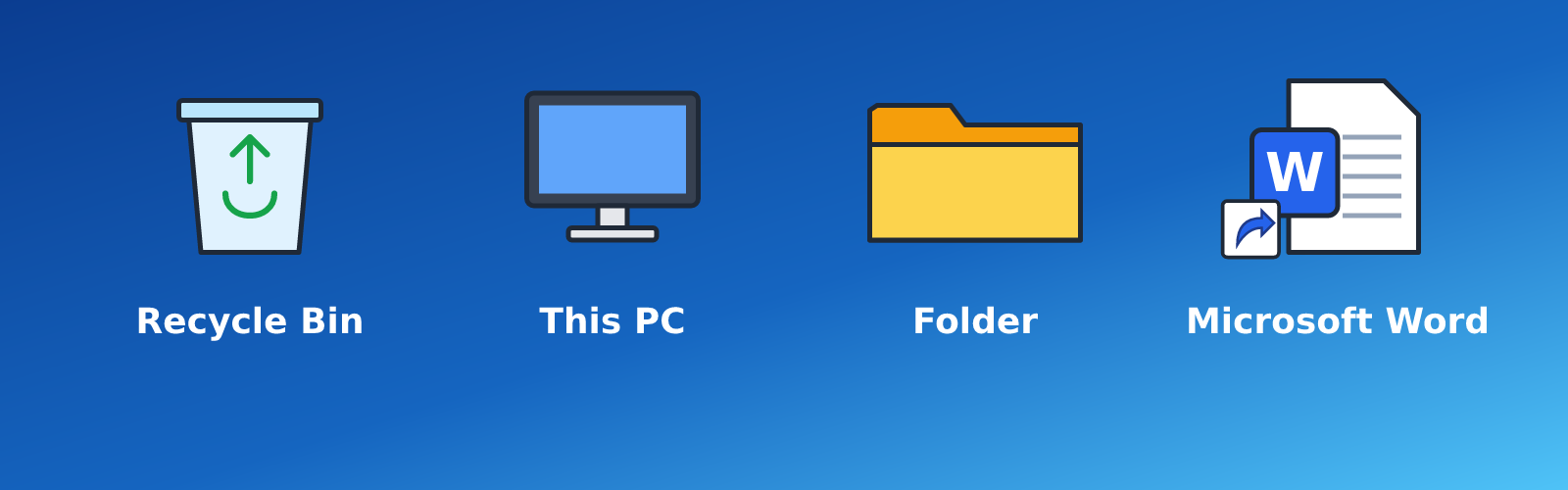
Remember: To open an icon, double-click it with the left mouse button.
4. Shapes of the Mouse Pointer
| Shape | Meaning |
|---|---|
| Arrow | Ready to point and click |
| Pointing hand | Over a link you can click |
| Spinning circle | The computer is busy – wait |
| I-beam (like the letter I) | Over text – click to type or select text |
New words
- Operating system
- The main program that controls the computer, e.g. Microsoft Windows.
- Desktop
- The main screen that appears after Windows starts.
- Wallpaper
- The picture or colour on the desktop background.
- Icon
- A small picture that stands for a program, file or folder.
- Taskbar
- The long bar at the bottom of the Windows screen.
- Recycle Bin
- The place where deleted files are kept until they are emptied or restored.
Summary
- The desktop is the main screen after Windows starts.
- Desktop features: wallpaper, icons, mouse pointer, taskbar and Start button.
- Icons stand for programs, files and folders; double-click to open them.
- The Recycle Bin keeps deleted files.
Class activity: Desktop Tour
- Switch on the computer and wait for the desktop.
- Point the mouse at each feature and tell your partner its name.
- Double-click the Recycle Bin icon to open it, then close it with the X button.
You need: Desktop computer, Mouse, Keyboard
Exercises
Answer in your exercise book first, then check your answers.
1. The picture that covers the desktop is called the…
- A. Taskbar
- B. Wallpaper
- C. Icon
- D. Pointer
Show answer
Answer: WallpaperThe wallpaper is the desktop background.2. Where is the taskbar usually found?
- A. Top of the screen
- B. Bottom of the screen
- C. Middle of the screen
- D. Inside the Recycle Bin
Show answer
Answer: Bottom of the screenIn Windows, the taskbar is at the bottom by default.3. Which icon keeps files that have been deleted?
- A. This PC
- B. Folder
- C. Recycle Bin
- D. Microsoft Word
Show answer
Answer: Recycle BinDeleted files go to the Recycle Bin.4. Icons are small pictures that stand for programs, files and folders.
- A. True
- B. False
Show answer
Answer: TrueThat is the meaning of an icon.5. A spinning circle pointer means the computer is ready.
- A. True
- B. False
Show answer
Answer: FalseIt means the computer is busy.6. Microsoft Windows is an example of an ______ system.
Show answer
Answer: operatingWindows is an operating system.7. Name four features of the desktop.
Show answer
Answer: Any four: wallpaper, icons, mouse pointer, taskbar, Start button.Any four correct features are accepted.8. What is the use of the 'This PC' icon?
Show answer
Answer: It shows the drives and storage devices on the computer.This PC lets you see the hard disk, flash drives and other drives.
Homework
- Draw the Windows desktop and label five features.