Basic 4 · Computing · Introduction to MS Windows Interface
Personalizing the Desktop Background
In this topic you will learn what desktop personalization means and how to change the desktop background to a picture, a solid colour or a slideshow.
By the end of these notes you should be able to:
- Explain what desktop personalization means
- State the three types of desktop background
- Change the desktop background step by step
- Choose a fit for the background picture
What you already know
- Features of the desktop
- Right-click and click with the mouse
Copy everything that has a blue line on its left into your notebook. The other parts are for reading.
- Strand
- Introduction to Computing
- Sub-strand
- Introduction to MS Windows Interface
- Indicator
- B4.1.2.1.2 – Demonstrate how to personalize the desktop background
Introduction
You can decorate your exercise book with your favourite picture. In the same way, you can change the picture on the computer desktop. This is called personalizing the desktop.
1. What is Personalization?
Desktop personalization: Changing the look and feel of the Windows desktop to suit the user.
You can personalize:
- the desktop background (wallpaper),
- the colours of windows and the taskbar,
- the sounds the computer makes,
- the screen saver (a moving picture that appears when the computer is not used for some time),
- the theme (a set of background, colours and sounds together).
2. Types of Desktop Background
| Option | What it does |
|---|---|
| Picture | Shows one picture as the wallpaper |
| Solid colour | Fills the desktop with one plain colour |
| Slideshow | Changes the wallpaper picture after a set time |
3. How to Change the Desktop Background
Steps (Windows 10 and Windows 11)
- Right-click on an empty part of the desktop.
- Click Personalize from the menu.
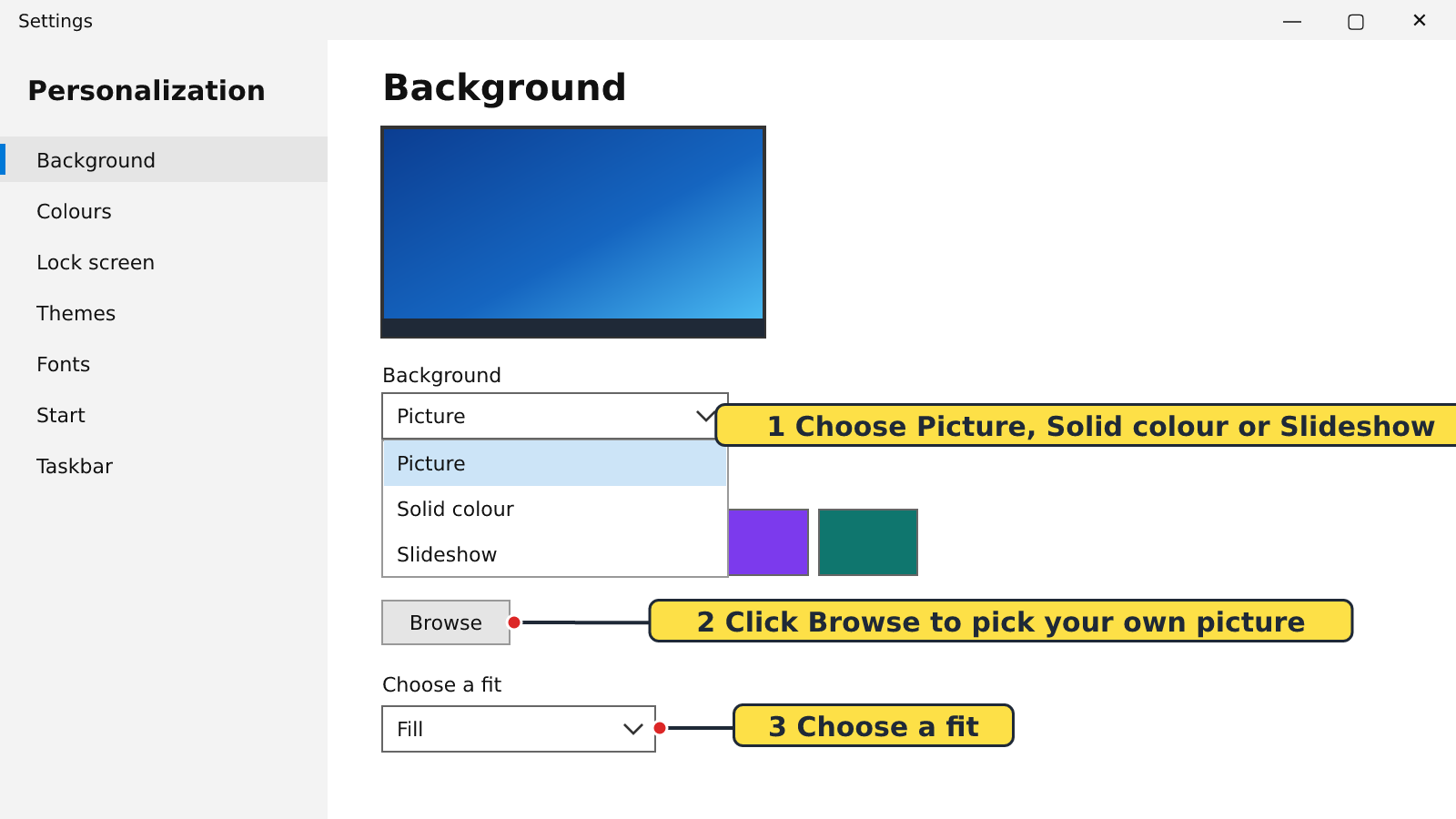
- The Settings window opens on Background. (If not, click Background.)
- Click the box under Background (or 'Personalize your background') and choose Picture, Solid colour or Slideshow.
- If you chose Picture, click one of the pictures shown, or click Browse (Browse photos) to pick your own picture.
- Under 'Choose a fit', choose how the picture fills the screen, e.g. Fill.
- Close the Settings window by clicking the X at the top right.
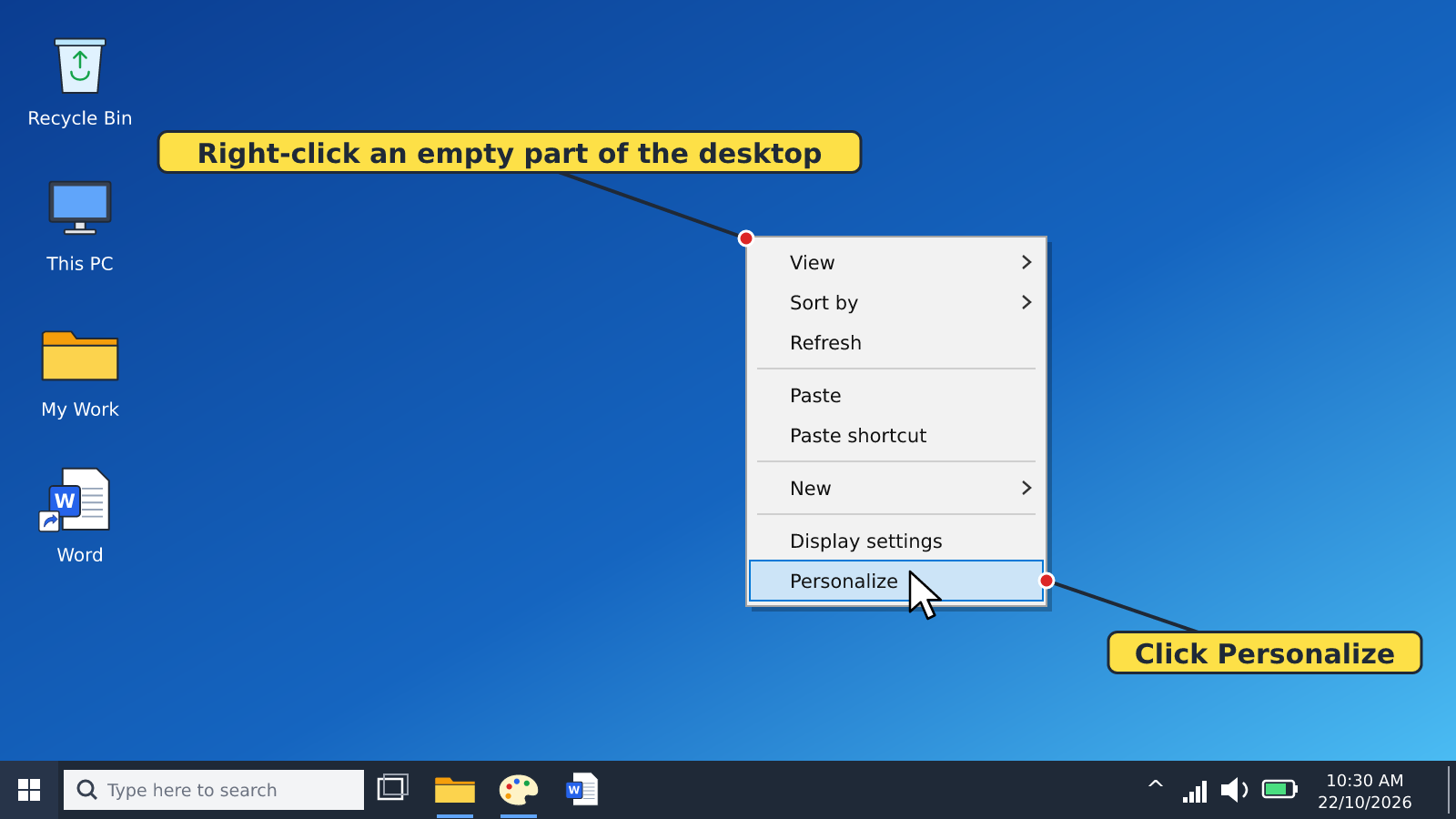
Remember: Always right-click on an EMPTY part of the desktop, not on an icon.
4. Choosing a Fit
| Fit | What it does |
|---|---|
| Fill | Fills the whole screen; some parts of the picture may be cut off |
| Fit | Shows the whole picture; there may be empty space at the sides |
| Stretch | Stretches the picture to fill the screen; it may look out of shape |
| Tile | Repeats a small picture many times across the screen |
| Center | Places the picture in the middle of the screen |
Tip: In the school lab, ask your teacher before changing the wallpaper. Change it back when you finish.
New words
- Personalize
- To change something to suit your own taste.
- Theme
- A set of desktop background, colours and sounds that go together.
- Screen saver
- A moving picture that appears when the computer is not used for some time.
- Slideshow
- A background that changes pictures after a set time.
- Right-click
- Pressing the right mouse button once to show a menu.
- Settings
- The Windows program used to change how the computer looks and works.
Summary
- Personalization means changing the look and feel of the desktop.
- The background can be a picture, a solid colour or a slideshow.
- Right-click an empty part of the desktop → Personalize → Background.
- 'Choose a fit' sets how the picture fills the screen.
Class activity: My Own Desktop
- Follow the steps to change the background to a picture you like.
- Change it to a solid colour of your choice.
- Show your teacher, then change it back to the original background.
You need: Desktop computer, Mouse, Keyboard
Exercises
Answer in your exercise book first, then check your answers.
1. To start changing the background, you right-click on…
- A. An icon
- B. An empty part of the desktop
- C. The Recycle Bin
- D. The keyboard
Show answer
Answer: An empty part of the desktopRight-clicking an empty area shows the Personalize option.2. Which option changes the wallpaper picture after a set time?
- A. Picture
- B. Solid colour
- C. Slideshow
- D. Tile
Show answer
Answer: SlideshowA slideshow changes pictures automatically.3. Which fit repeats a small picture many times across the screen?
- A. Fill
- B. Tile
- C. Center
- D. Stretch
Show answer
Answer: TileTile repeats the picture like floor tiles.4. A theme is a set of background, colours and sounds.
- A. True
- B. False
Show answer
Answer: TrueA theme changes several things together.5. A solid colour background shows a photograph.
- A. True
- B. False
Show answer
Answer: FalseA solid colour background is one plain colour.6. Changing the look and feel of the desktop is called ______.
Show answer
Answer: personalizationPersonalization means making the desktop suit you.7. Write the steps to change the desktop background to a picture.
Show answer
Answer: Right-click an empty part of the desktop → click Personalize → click Background → choose Picture → click a picture or Browse to choose one → choose a fit → close the window.Steps must be in the correct order.8. Name three things on the computer that can be personalized.
Show answer
Answer: Any three: desktop background, colours, sounds, screen saver, theme.Any three correct items are accepted.
Homework
- Write the steps for changing the desktop background in your notebook and learn them.