Basic 4 · Computing · Introduction to MS Windows Interface
Sections of the Taskbar
In this topic you will learn the sections of the Windows taskbar, how to use the Start menu, and how to pin and unpin programs on the taskbar.
By the end of these notes you should be able to:
- Identify the sections of the taskbar
- State the use of each section
- Open programs from the Start menu
- Pin and unpin a program on the taskbar
What you already know
- Features of the desktop
Copy everything that has a blue line on its left into your notebook. The other parts are for reading.
- Strand
- Introduction to Computing
- Sub-strand
- Introduction to MS Windows Interface
- Indicator
- B4.1.2.1.3 – Demonstrate the use of the sections of the Taskbar
Introduction
At the bottom of the Windows desktop is a long bar called the taskbar. It helps you to start programs, move between open windows and see the time. In this lesson we will learn its sections.
1. What is the Taskbar?
Taskbar: The long horizontal bar at the bottom of the Windows desktop.
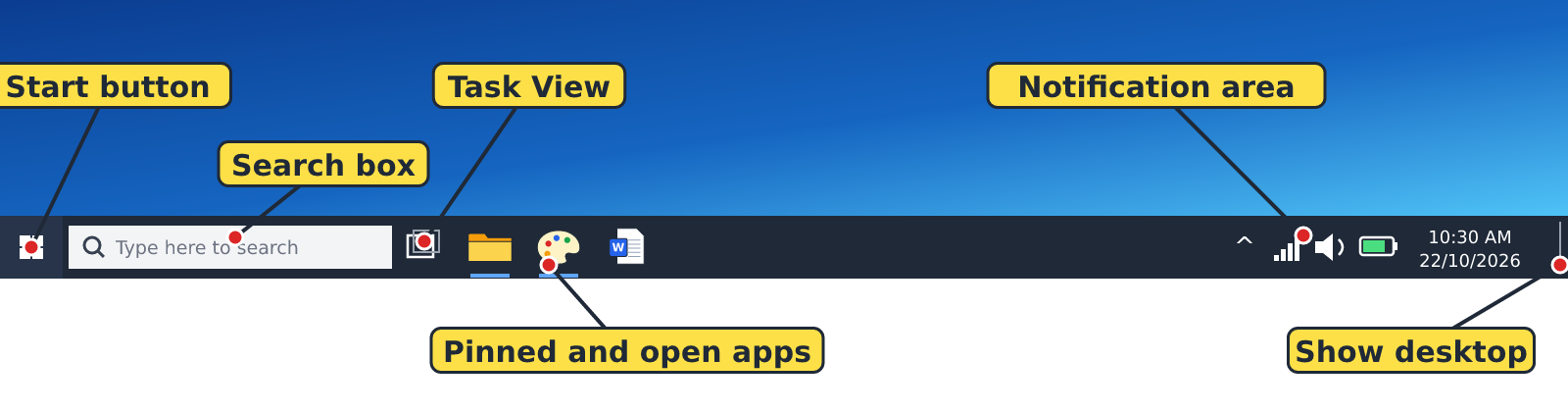
2. Sections of the Taskbar
| Section | Where it is | Use |
|---|---|---|
| Start button | Far left (Windows 10) or left of the centre icons (Windows 11) | Opens the Start menu, which lists all programs |
| Search box | Next to the Start button | Type the name of a program or file to find it quickly |
| Task View | Next to the search box | Shows all open windows so you can pick one |
| Pinned and open applications | Middle of the taskbar | Icons of programs. Click one to open it or switch to it. A line under an icon means it is open. |
| Notification area (system tray) | Right side | Shows the time, date, volume, internet connection, battery and messages |
| Show desktop button | Very far right edge | Click it to hide all open windows and see the desktop |
Remember: In Windows 11 the Start button and app icons are in the middle of the taskbar, but the sections and their uses are the same.
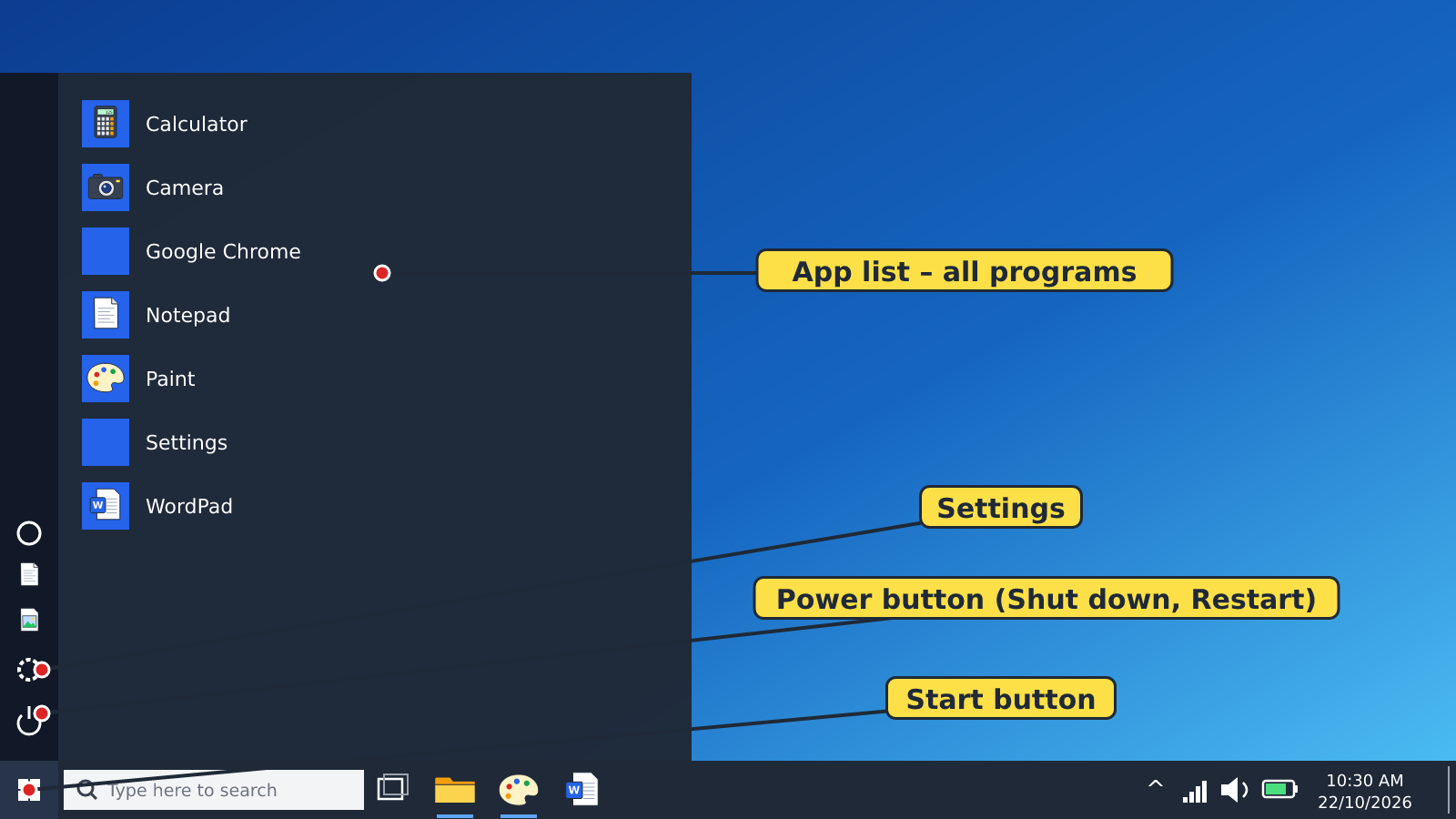
3. The Start Menu
Clicking the Start button opens the Start menu. From it you can:
- open any program installed on the computer,
- open Settings,
- shut down or restart the computer using the Power button.
4. Pinning and Unpinning Programs
Pinning a program puts its icon on the taskbar so you can open it with one click.
To pin a program
- Click the Start button.
- Find the program, e.g. Paint.
- Right-click it.
- Click Pin to taskbar (in Windows 10 it may be under More).
To unpin a program
- Right-click the program's icon on the taskbar.
- Click Unpin from taskbar.
Tip: Unpinning only removes the icon from the taskbar. The program stays on the computer.
New words
- Taskbar
- The long horizontal bar at the bottom of the desktop.
- Start menu
- The list of programs and options that opens when you click the Start button.
- Notification area
- The right side of the taskbar that shows the time, volume, network and battery.
- Pin
- To fix a program's icon on the taskbar.
- Unpin
- To remove a program's icon from the taskbar.
- Search box
- The place on the taskbar where you type to find programs and files.
Summary
- The taskbar is the long bar at the bottom of the desktop.
- Its sections: Start button, search box, Task View, pinned/open apps, notification area and Show desktop.
- The Start menu lists programs and has the Power button.
- Pinning puts a program on the taskbar; unpinning removes only the icon.
Class activity: Taskbar Treasure Hunt
- Find and tell your partner the time shown in the notification area.
- Use the search box to find and open Paint.
- Pin Paint to the taskbar, close it, open it from the taskbar, then unpin it.
You need: Desktop computer, Mouse, Keyboard
Exercises
Answer in your exercise book first, then check your answers.
1. Which section of the taskbar shows the time?
- A. Start button
- B. Search box
- C. Notification area
- D. Task View
Show answer
Answer: Notification areaThe time and date are in the notification area on the right.2. Clicking the Start button opens the…
- A. Recycle Bin
- B. Start menu
- C. Wallpaper
- D. Printer
Show answer
Answer: Start menuThe Start button opens the Start menu.3. Which button hides all open windows to show the desktop?
- A. Show desktop
- B. Task View
- C. Search box
- D. Power
Show answer
Answer: Show desktopIt is at the very far right edge of the taskbar.4. The taskbar is usually at the bottom of the screen.
- A. True
- B. False
Show answer
Answer: TrueBy default Windows places the taskbar at the bottom.5. Unpinning a program from the taskbar removes it from the computer.
- A. True
- B. False
Show answer
Answer: FalseUnpinning removes only the icon from the taskbar.6. A line under a taskbar icon shows that the program is ______.
Show answer
Answer: openOpen programs have a line under their icon.7. Name four sections of the taskbar.
Show answer
Answer: Any four: Start button, search box, Task View, pinned/open applications, notification area, Show desktop.Any four correct sections are accepted.8. Write the steps to pin a program to the taskbar.
Show answer
Answer: Click Start → find the program → right-click it → click Pin to taskbar.Steps must be in the correct order.
Homework
- Draw the taskbar and label its six sections.