Basic 4 · Computing · Introduction to MS Windows Interface
Adding and Removing Desktop Icons
In this topic you will learn the types of desktop icons and how to add and remove icons on the Windows desktop.
By the end of these notes you should be able to:
- Differentiate between system icons and shortcut icons
- Add system icons to the desktop
- Add a program shortcut to the desktop
- Remove icons from the desktop
What you already know
- Desktop icons and the Recycle Bin
- Personalize settings
- The Start menu
Copy everything that has a blue line on its left into your notebook. The other parts are for reading.
- Strand
- Introduction to Computing
- Sub-strand
- Introduction to MS Windows Interface
- Indicator
- B4.1.2.1.4 – Add and remove icons from the desktop
Introduction
Icons on the desktop help you to open programs quickly. You can add icons for the programs you use often and remove icons you do not need. This keeps your desktop neat.
1. Types of Desktop Icons
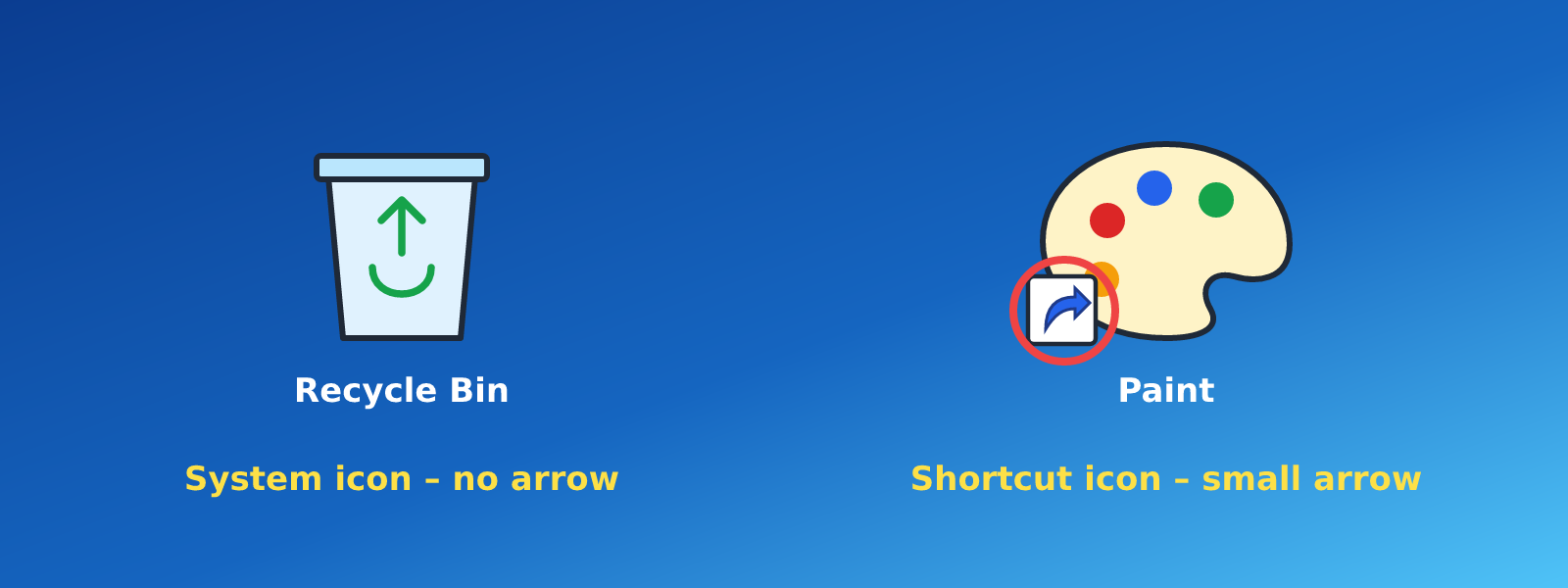
| Type | Examples | How to recognise it |
|---|---|---|
| System icons | This PC, Recycle Bin, Network, User's Files | No arrow on the icon |
| Shortcut icons | Microsoft Word, Paint, Google Chrome | A small curved arrow at the bottom-left corner |
Shortcut: An icon that links to a program, file or folder so you can open it quickly.
2. Adding System Icons to the Desktop
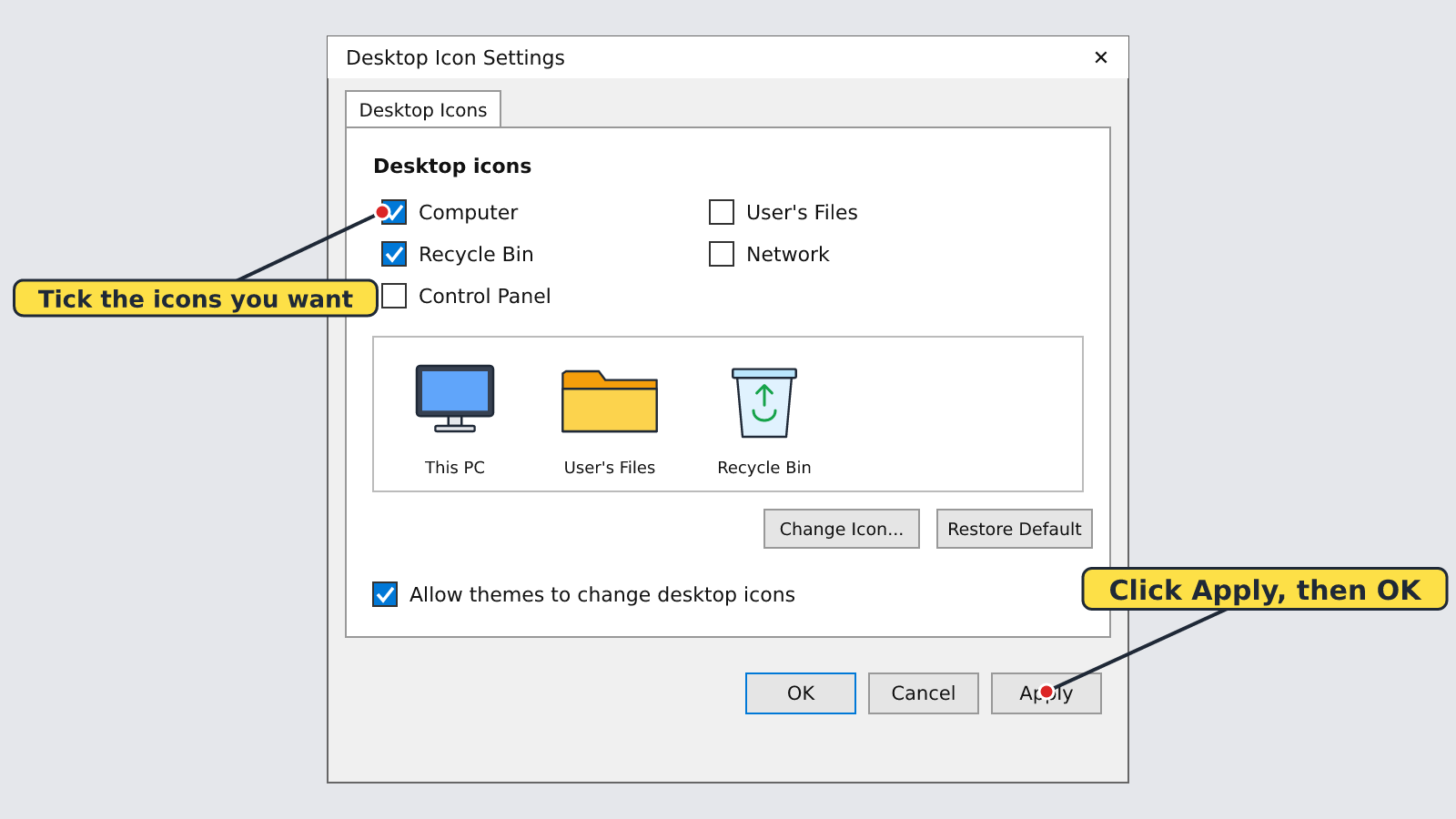
- Right-click an empty part of the desktop and click Personalize.
- Click Themes.
- Click Desktop icon settings.
- Tick the boxes of the icons you want, e.g. Computer (This PC) and Recycle Bin.
- Click Apply, then OK.
3. Adding a Program Shortcut to the Desktop
Method 1: Drag from the Start menu (Windows 10)
- Click the Start button.
- Find the program in the list, e.g. Paint.
- Click and hold the program, drag it onto the desktop, then release the mouse button.
Method 2: Send to Desktop
- Click the Start button and find the program.
- Right-click it and click Open file location (under More in Windows 10).
- In the window that opens, right-click the program and click Show more options (Windows 11), then Send to → Desktop (create shortcut).
4. Removing Icons from the Desktop
Method 1: Using the right-click menu
- Right-click the icon you want to remove.
- Click Delete (or the bin symbol in Windows 11).
- The icon is moved to the Recycle Bin.
Method 2: Using the keyboard
- Click the icon once to select it.
- Press the Delete key on the keyboard.
To remove a system icon such as This PC, untick it in Desktop icon settings and click OK.
Remember: Deleting a shortcut icon does NOT remove the program from the computer. Only the quick link is removed.
Common mistake: Be careful not to delete a file or folder from the desktop by mistake. If you do, open the Recycle Bin, right-click it and click Restore.
New words
- Shortcut
- An icon that links to a program, file or folder so you can open it quickly.
- System icon
- A built-in Windows icon such as This PC or Recycle Bin.
- Drag
- To press and hold the mouse button while moving the mouse.
- Delete
- To remove an item; on the desktop it goes to the Recycle Bin.
- Restore
- To bring back a deleted item from the Recycle Bin.
- Tick
- To click a small box so that a check mark (✓) appears.
Summary
- Desktop icons are system icons or shortcut icons; shortcuts have a small arrow.
- Add system icons through Personalize → Themes → Desktop icon settings.
- Add a program shortcut by dragging it from the Start menu or using Send to → Desktop.
- Remove an icon by right-clicking → Delete or selecting it and pressing Delete.
Class activity: Tidy Desktop
- Add a shortcut for Paint to the desktop.
- Show your teacher the arrow on the new icon.
- Delete the Paint shortcut, then open the Recycle Bin and restore it.
You need: Desktop computer, Mouse, Keyboard
Exercises
Answer in your exercise book first, then check your answers.
1. How can you tell that an icon is a shortcut?
- A. It is blue
- B. It has a small arrow
- C. It is very large
- D. It has no name
Show answer
Answer: It has a small arrowShortcut icons have a small curved arrow at the corner.2. Which key removes a selected icon?
- A. Enter
- B. Shift
- C. Delete
- D. Spacebar
Show answer
Answer: DeletePressing Delete removes the selected icon.3. Where do deleted desktop icons go?
- A. Taskbar
- B. Recycle Bin
- C. Start menu
- D. Notification area
Show answer
Answer: Recycle BinDeleted items go to the Recycle Bin.4. Recycle Bin is a system icon.
- A. True
- B. False
Show answer
Answer: TrueIt is a built-in Windows icon.5. Deleting a shortcut icon removes the program from the computer.
- A. True
- B. False
Show answer
Answer: FalseOnly the shortcut is removed; the program stays.6. To bring back a deleted icon, open the Recycle Bin and click ______.
Show answer
Answer: RestoreRestore returns the item to where it was.7. Write the steps to add the This PC icon to the desktop.
Show answer
Answer: Right-click the desktop → Personalize → Themes → Desktop icon settings → tick Computer → Apply → OK.Steps must be in the correct order.8. Give two ways to remove an icon from the desktop.
Show answer
Answer: Right-click it and click Delete; or click it once and press the Delete key.Both methods send the icon to the Recycle Bin.
Homework
- Draw a system icon and a shortcut icon. Write two differences between them.