Basic 4 · Computing · Introduction to MS Windows Interface
Moving, Selecting and Hiding Multiple Icons
In this topic you will learn how to move icons, select many icons at once, move them together, and hide or show all desktop icons.
By the end of these notes you should be able to:
- Move an icon to a new place on the desktop
- Select multiple icons using three methods
- Move multiple icons together
- Hide and show desktop icons
What you already know
- Adding and removing icons
- Dragging with the mouse
Copy everything that has a blue line on its left into your notebook. The other parts are for reading.
- Strand
- Introduction to Computing
- Sub-strand
- Introduction to MS Windows Interface
- Indicator
- B4.1.2.1.5 – Move, select and hide multiple icons on the desktop
Introduction
Sometimes the desktop has many icons and looks untidy. You can move icons to new places, select many icons at once, and even hide all the icons. In this lesson you will learn how.
1. Moving an Icon
- Point the mouse at the icon.
- Press and hold the left mouse button.
- Drag the icon to the new place.
- Release the mouse button.
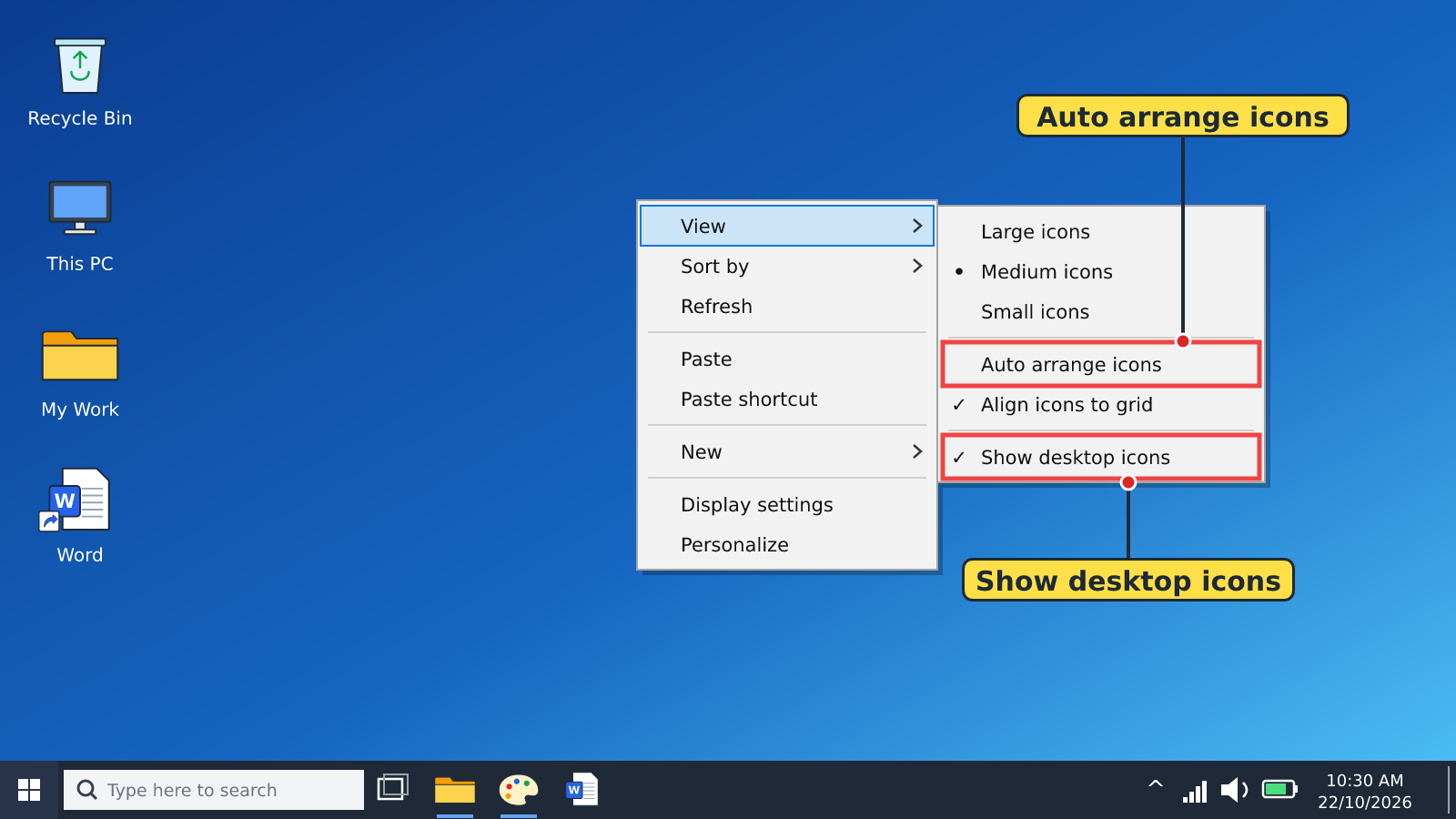
Tip: If the icon jumps back to its old place, right-click an empty part of the desktop, point to View and click Auto arrange icons to turn it off.
2. Selecting Multiple Icons
| Method | Steps | Use it when |
|---|---|---|
| Ctrl + Click | Hold down the Ctrl key and click each icon you want. | The icons are in different places |
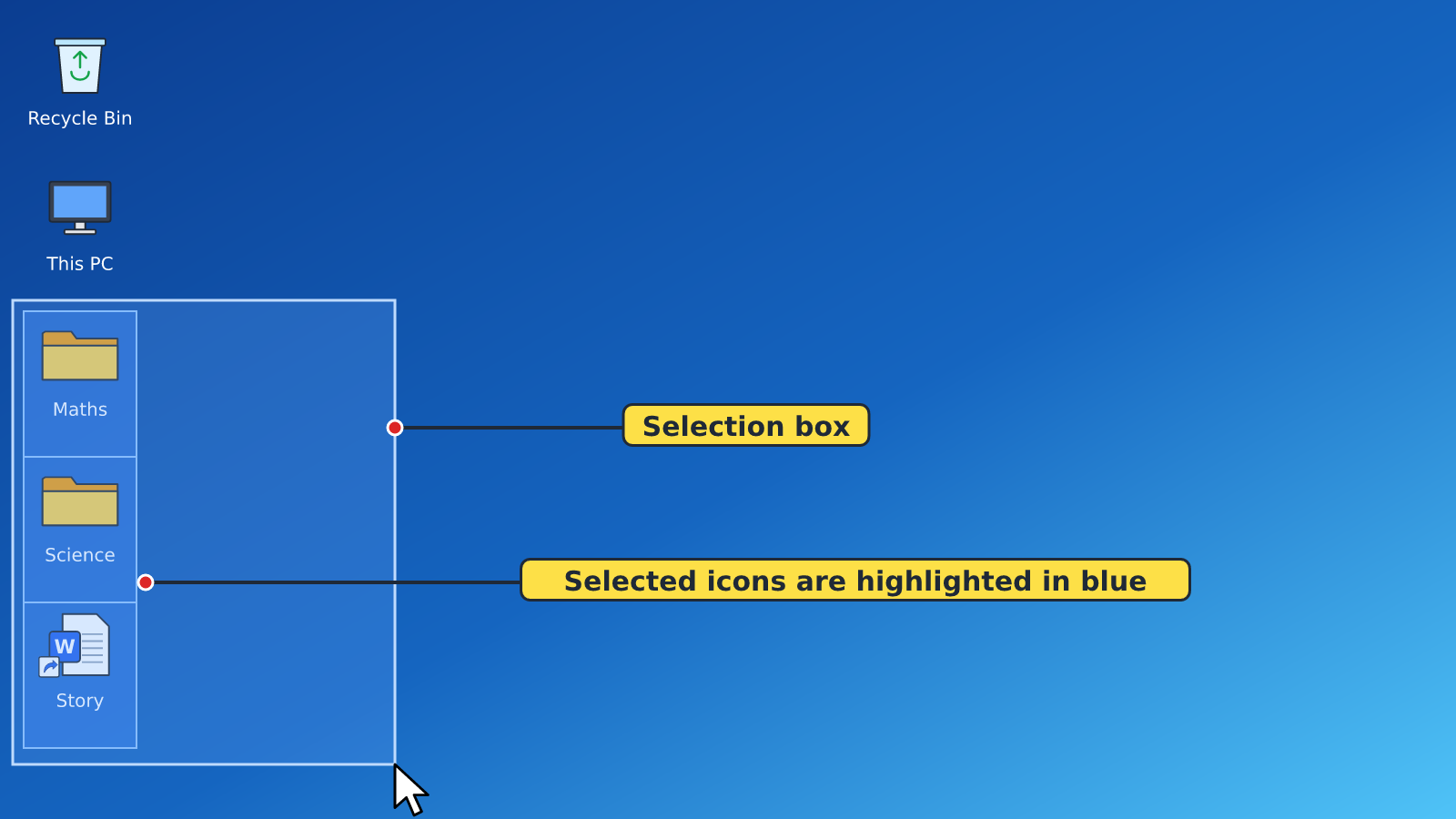
| Drag a box | Click on an empty space, hold the left button and drag a box around the icons, then release. | The icons are next to each other |
| Ctrl + A | Click an empty part of the desktop, then press Ctrl and A together. | You want to select ALL the icons |
Selected icons are highlighted in blue. To cancel the selection, click an empty part of the desktop.
3. Moving Multiple Icons
- Select the icons using any method above.
- Point at one of the selected icons.
- Drag it to the new place. All the selected icons move together.
- Release the mouse button.
4. Hiding and Showing Desktop Icons
To hide all desktop icons
- Right-click an empty part of the desktop.
- Point to View.
- Click Show desktop icons to remove the tick. All icons disappear.
To show the icons again
- Right-click the desktop.
- Point to View.
- Click Show desktop icons again so the tick appears.
Remember: Hiding icons does NOT delete them. They are still on the computer and come back when you show them again.
New words
- Select
- To choose an item by clicking it so that it is highlighted.
- Highlight
- The blue colour that shows an item is selected.
- Ctrl key
- The Control key, used with other keys or clicks to give commands.
- Selection box
- The rectangle you drag around items to select them.
- Auto arrange
- A setting that lines up icons automatically and stops you placing them freely.
- Hide
- To make something disappear from view without deleting it.
Summary
- Move an icon by dragging it with the left mouse button.
- Select many icons with Ctrl + Click, by dragging a box, or with Ctrl + A for all.
- Drag one selected icon to move all selected icons together.
- Right-click desktop → View → Show desktop icons hides or shows all icons.
Class activity: Desktop Organiser
- Select three icons using Ctrl + Click and move them to the right side of the desktop.
- Select all icons with Ctrl + A, then click an empty space to cancel the selection.
- Hide all the desktop icons, let your partner check, then show them again.
You need: Desktop computer, Mouse, Keyboard
Exercises
Answer in your exercise book first, then check your answers.
1. Which keys select all icons on the desktop?
- A. Ctrl + C
- B. Ctrl + A
- C. Shift + A
- D. Alt + A
Show answer
Answer: Ctrl + AA stands for All.2. Which key do you hold down while clicking icons that are far apart?
- A. Ctrl
- B. Enter
- C. Tab
- D. Esc
Show answer
Answer: CtrlCtrl + Click selects icons one by one.3. To hide all desktop icons you right-click the desktop, point to View and click…
- A. Auto arrange icons
- B. Show desktop icons
- C. Large icons
- D. Refresh
Show answer
Answer: Show desktop iconsRemoving the tick from Show desktop icons hides them.4. Selected icons are highlighted in blue.
- A. True
- B. False
Show answer
Answer: TrueWindows shows selected items in blue.5. Hiding desktop icons deletes them from the computer.
- A. True
- B. False
Show answer
Answer: FalseHidden icons are still there and can be shown again.6. To cancel a selection, click an ______ part of the desktop.
Show answer
Answer: emptyClicking empty space removes the highlight.7. State three ways of selecting multiple icons.
Show answer
Answer: Ctrl + Click; dragging a selection box; Ctrl + A.These are the three methods learnt.8. Abena tries to move an icon but it jumps back to its old place. What should she do?
Show answer
Answer: Right-click an empty part of the desktop, point to View and click Auto arrange icons to turn it off.Auto arrange stops icons from staying where you drop them.
Homework
- Write the steps to hide and show desktop icons.