Basic 4 · Computing · Introduction to MS Windows Interface
Creating, Naming and Renaming a Folder
In this topic you will learn what a folder is, how to create and name a new folder on the desktop, how to rename it, and the rules for naming folders.
By the end of these notes you should be able to:
- Explain what a folder and a file are
- Create and name a new folder on the desktop
- Rename a folder using two methods
- State the rules for naming folders
What you already know
- Desktop icons
- Selecting icons
Copy everything that has a blue line on its left into your notebook. The other parts are for reading.
- Strand
- Introduction to Computing
- Sub-strand
- Introduction to MS Windows Interface
- Indicator
- B4.1.2.1.6 – Create, name and rename a folder
Introduction
Your teacher keeps class registers and exam papers in different files so they do not get mixed up. On a computer we keep our work in folders. In this lesson you will learn how to create, name and rename a folder.
1. What is a Folder?
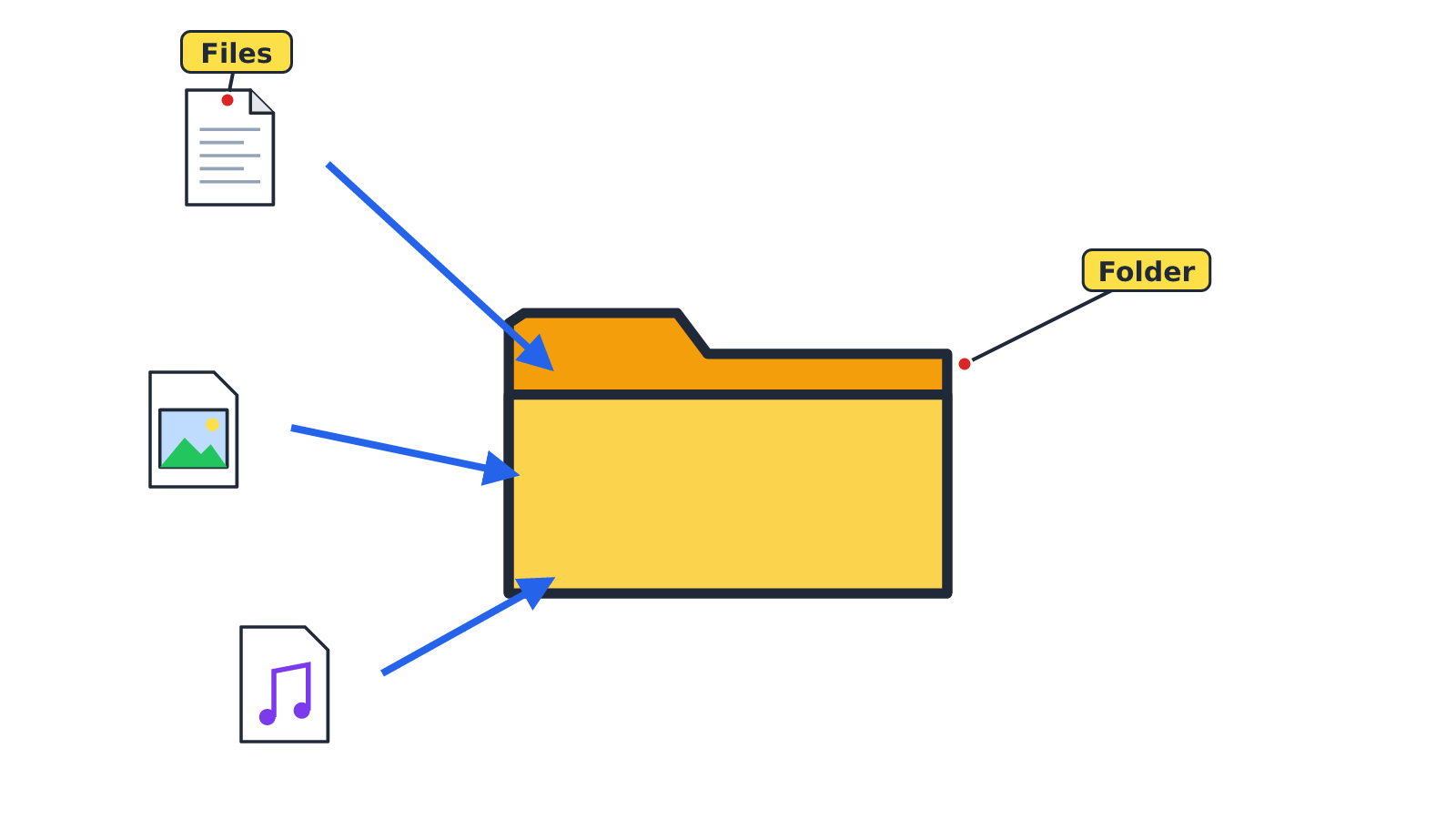
Folder: A place on the computer used to keep files and other folders together.
File: A single piece of saved work, such as a document, picture or song.
Why we use folders
- Folders help us to arrange our work neatly.
- They make it easy to find our files.
- A folder inside another folder is called a subfolder.
2. Creating a New Folder on the Desktop
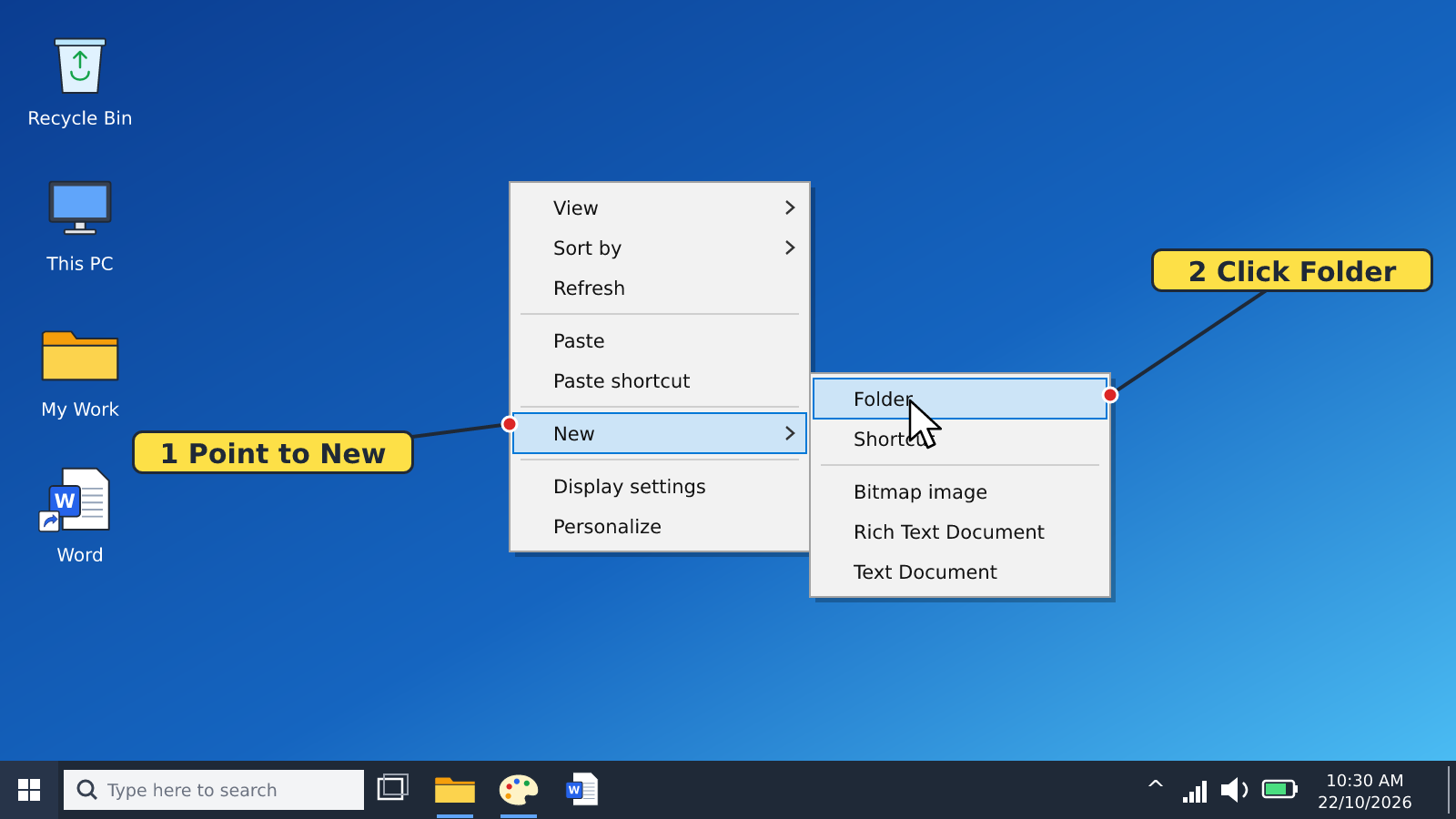
- Right-click an empty part of the desktop.
- Point to New.
- Click Folder. A new folder appears named 'New folder', with its name highlighted.
- Type a name for the folder, e.g. My Class Work.
- Press Enter.
Tip: Inside File Explorer, you can also press Ctrl + Shift + N to create a new folder quickly.
3. Renaming a Folder
Method 1: Using the right-click menu
- Right-click the folder.
- Click Rename (in Windows 11, the Rename symbol at the top of the menu).
- Type the new name.
- Press Enter.
Method 2: Using the F2 key
- Click the folder once to select it.
- Press the F2 key.
- Type the new name and press Enter.
4. Rules for Naming Folders
- Give the folder a name that tells what is inside, e.g. 'Science Homework'.
- Two folders in the same place cannot have the same name.
- A folder name cannot contain these characters: \ / : * ? " < > |
| Good name | Bad name | Why it is bad |
|---|---|---|
| Maths Week 3 | Maths/Week 3 | Contains / |
| My Pictures | My*Pictures | Contains * |
| English Stories | New folder | Does not tell what is inside |
Remember: Create: Right-click → New → Folder. Rename: Right-click → Rename, or press F2.
New words
- Folder
- A place on the computer used to keep files and other folders together.
- File
- A single piece of saved work, such as a document, picture or song.
- Subfolder
- A folder inside another folder.
- Rename
- To change the name of a file or folder.
- F2 key
- A key on the top row of the keyboard used to rename a selected item.
- File Explorer
- The Windows program used to view and organise files and folders.
Summary
- A folder keeps files and other folders together.
- Create a folder: right-click the desktop → New → Folder → type a name → Enter.
- Rename a folder: right-click → Rename, or select it and press F2.
- Folder names cannot contain \ / : * ? " < > |
Class activity: Organise My Work
- Create a new folder on the desktop and name it with your first name.
- Rename it to 'Your name – Computing' using the F2 key.
- Try to name a folder 'Class*Work' and read the message Windows shows you.
You need: Desktop computer, Mouse, Keyboard
Exercises
Answer in your exercise book first, then check your answers.
1. Which key is used to rename a selected folder?
- A. F1
- B. F2
- C. F5
- D. Esc
Show answer
Answer: F2F2 starts renaming the selected item.2. A folder inside another folder is called a…
- A. Subfolder
- B. Shortcut
- C. Taskbar
- D. Wallpaper
Show answer
Answer: SubfolderSub means 'under' or 'inside'.3. Which of these is NOT allowed in a folder name?
- A. Letters
- B. Numbers
- C. Spaces
- D. ?
Show answer
Answer: ?? is one of the characters Windows does not allow.4. A new folder is first named 'New folder'.
- A. True
- B. False
Show answer
Answer: TrueWindows gives every new folder this name until you change it.5. Two folders in the same place can have the same name.
- A. True
- B. False
Show answer
Answer: FalseEach folder in the same location must have a different name.6. To create a folder, right-click the desktop, point to New and click ______.
Show answer
Answer: FolderNew → Folder creates a new folder.7. Write the steps to create a folder named 'Science' on the desktop.
Show answer
Answer: Right-click an empty part of the desktop → point to New → click Folder → type Science → press Enter.Steps must be in the correct order.8. Give two reasons why we use folders.
Show answer
Answer: To arrange our work neatly; to find our files easily.Folders keep related files together.
Homework
- Draw a folder tree: a folder named 'School' with three subfolders named after three subjects.