Basic 6 · Computing · Introduction to MS PowerPoint
Using the Text Group on the PowerPoint Insert Ribbon
In this topic you will demonstrate how to use the icons in the Text group of the Insert ribbon in Microsoft PowerPoint.
By the end of these notes you should be able to:
- Identify the parts of the PowerPoint window
- Use the Text group tools: Text Box, Header & Footer, WordArt, Date & Time, Slide Number
- Create a simple slide presentation
What you already know
- Word processing basics (Basic 5)
Copy everything that has a blue line on its left into your notebook. The other parts are for reading.
- Strand
- Presentation
- Sub-strand
- Introduction to MS PowerPoint
- Indicator
- B6.2.1.1.1-3 – Demonstrate how to use icons in the Text group in the Insert Ribbon
Introduction
PowerPoint is a program for making slide presentations. Teachers, businesses and pupils use it to present ideas with text and pictures. The Insert ribbon has tools for adding text to slides.
1. The PowerPoint Window
| Part | Use |
|---|---|
| ribbon | tabs with tools: Home, Insert, Design, Transitions, Animations, Slide Show |
| slide pane | the large area where you edit the current slide |
| slide thumbnails | small pictures of all slides on the left |
| notes pane | notes for the speaker below the slide |
| status bar | shows the slide number and view buttons |
2. The Text Group on the Insert Tab
| Tool | What it does |
|---|---|
| Text Box | draws a box anywhere on the slide for typing text |
| Header & Footer | adds text, date and slide numbers at the bottom of slides |
| WordArt | inserts decorative, stylish text |
| Date & Time | inserts the current date and time |
| Slide Number | adds the slide number |
| Object | inserts content from another program, such as a document |
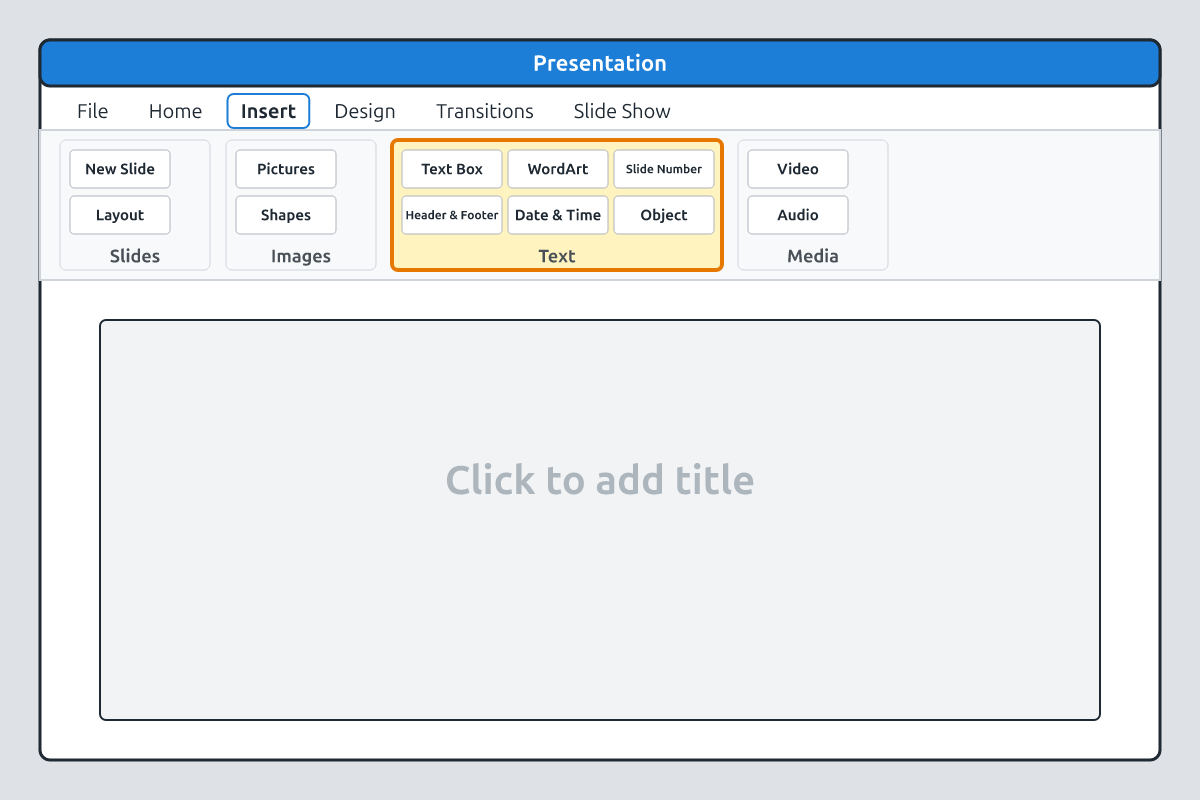
3. Using the Tools
- Text Box: click Insert → Text Box, click and drag on the slide, then type.
- WordArt: click Insert → WordArt, choose a style and type your title.
- Header & Footer: click Insert → Header & Footer, tick Date and time, Slide number and Footer, type footer text, then click Apply to All.
- Format the text using the Home tab (font, size, colour, bold).
4. A Simple Presentation
| Slide | Content |
|---|---|
| 1 | WordArt title "Our School" and your name in a text box |
| 2 | location and history |
| 3 | subjects and clubs |
| 4 | "Thank you" with slide numbers and the date in the footer |
Press F5 to start the slide show from the beginning. Press Esc to end it. Keep slides simple: few words, large fonts and clear pictures.
New words
- presentation
- A set of slides shown to an audience.
- slide
- One page of a presentation.
- ribbon
- The strip of tabs and tools at the top.
- text box
- A box for typing text anywhere on a slide.
- WordArt
- Decorative text styles.
- footer
- Text at the bottom of each slide.
Summary
- PowerPoint creates slide presentations.
- The Text group on the Insert tab has Text Box, Header & Footer, WordArt, Date & Time and Slide Number.
- Use Apply to All to put footers on every slide.
- Press F5 to start a slide show.
Class activity: My School Slides
- Create a four-slide presentation about your school.
- Use WordArt for the title and text boxes for information.
- Add slide numbers and a footer to all slides, then present it.
You need: Desktop computer, Mouse, Keyboard
Exercises
Answer in your exercise book first, then check your answers.
1. Which tool adds decorative text?
- A. WordArt
- B. Text Box
- C. Slide Number
- D. Footer
Show answer
Answer: WordArtStylish text.2. Header & Footer is found on which tab?
- A. Insert
- B. Home
- C. Design
- D. View
Show answer
Answer: InsertIn the Text group.3. Which key starts a slide show from the beginning?
- A. F5
- B. F2
- C. Esc
- D. Tab
Show answer
Answer: F5Slide show.4. A text box lets you type anywhere on a slide.
- A. True
- B. False
Show answer
Answer: TrueClick and drag.5. "Apply" adds a footer to all slides.
- A. True
- B. False
Show answer
Answer: False"Apply to All" does.6. One page of a presentation is a ______.
Show answer
Answer: slideSlides make a presentation.7. List four tools in the Text group of the Insert tab.
Show answer
Answer: Text Box, Header & Footer, WordArt, Slide Number (or Date & Time, Object).Any four.8. Give two tips for making good slides.
Show answer
Answer: Use few words and large fonts (or clear pictures, consistent design).Simplicity.
Homework
- Plan a five-slide presentation about a Ghanaian festival on paper.