How to Upload Your Profile Picture on the New Payslip Website
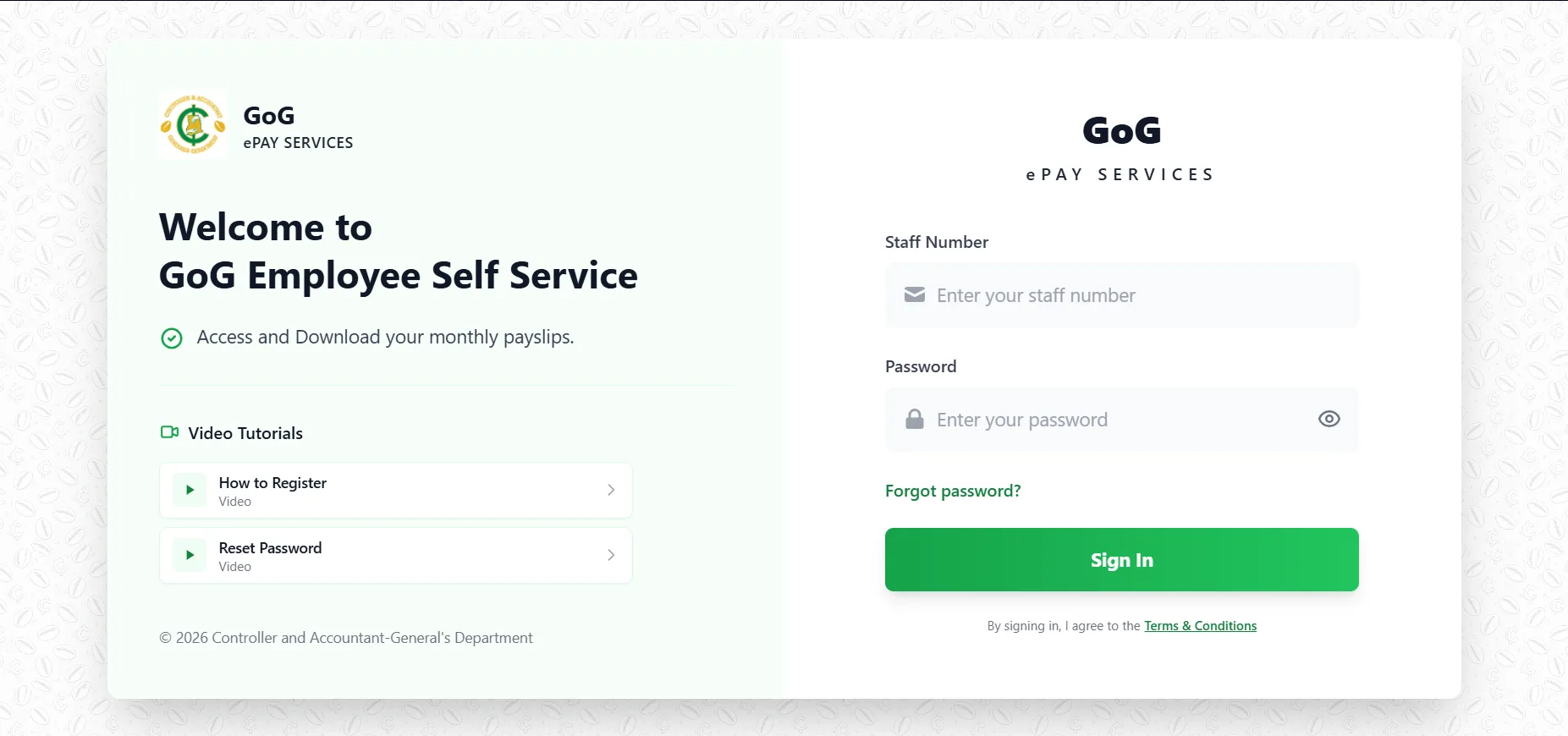
Updating your profile picture on the new payslip portal is simple and only takes a few steps. Follow the guide below to make sure your account looks professional and updated.
Open the website here: https://gogepayservices.com/private/home
Step 1: Sign In to Your Account
First, go to the payslip website and log in using your username and password. Make sure you are fully signed into your dashboard before continuing.
Step 2: Go to Your Profile
Once you are logged in:
- Look at the top right corner of the screen
- You will see the initials of your name (your profile icon)
- Click on it
- From the menu that appears, select “View Profile”
Step 3: Edit Your Profile
On your profile page:
- Look for the pencil (edit) icon
- Click on it to open your profile editing options
Step 4: Upload Your Profile Picture
Now you can update your photo:
- Click on the option to upload or change your profile picture
- Select an image from your device
- Upload it to the system
Important Requirement: White Background
Make sure your profile picture:
- Has a clean white background
- Is clear and professional
- Shows your face properly (no blur or dark shadows)
Step 5: Save Your Changes
After uploading:
- Confirm the image
- Click Save/Update to apply the changes
Your new profile picture will now appear on your account.
Summary
To update your profile picture: Sign in → Click initials → View Profile → Click pencil icon → Upload image → Save